
What it is
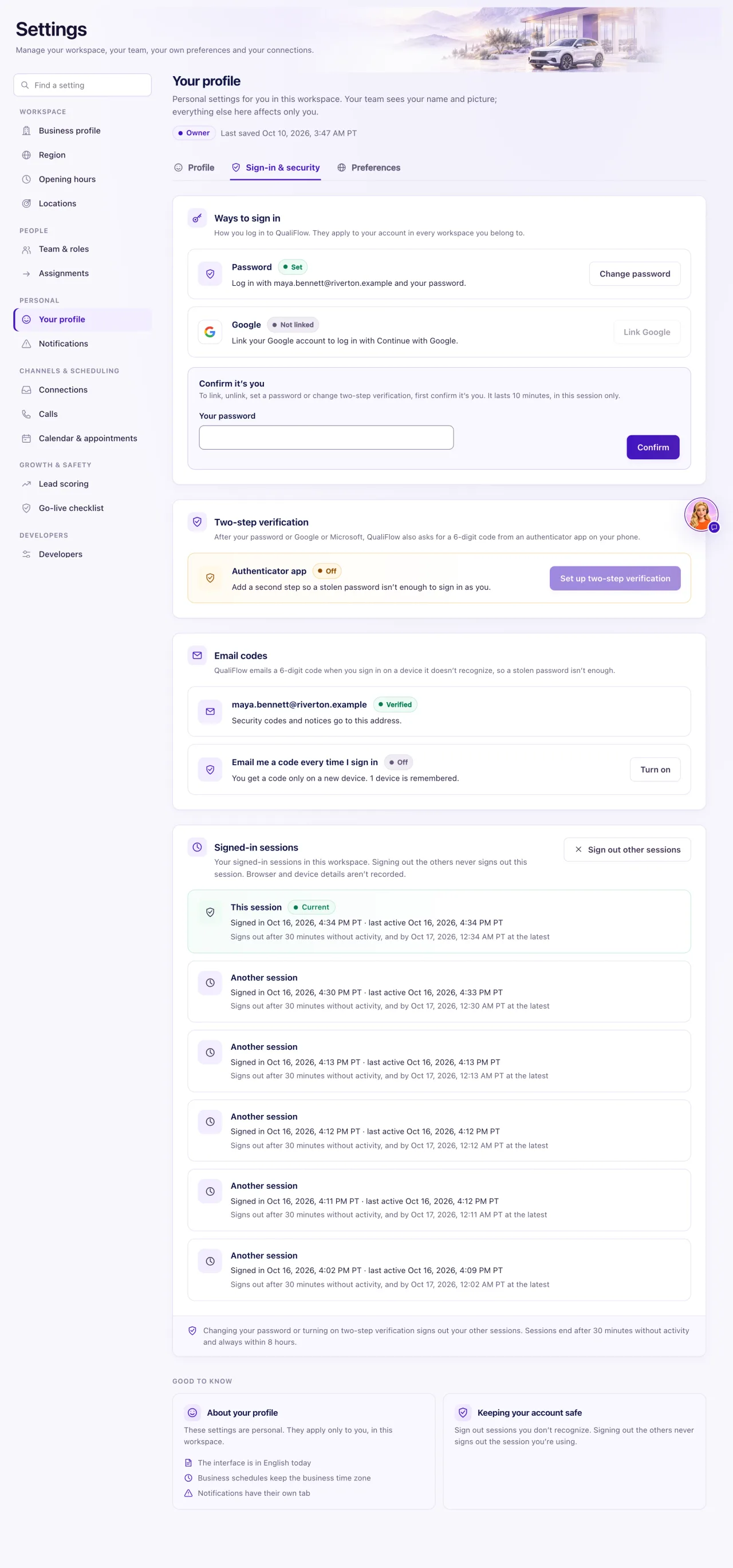
Sign-in & security is where you look after your own sign-in. Owners find it in Settings → Your profile → Sign-in & security. Staff find it as Settings → Sign-in & security.
How to use it
- Open Sign-in & security.
- Under Ways to sign in, select Change password (or Set a password), or Link Google or Microsoft. Unlink removes one.
- Under Two-step verification, select Set up two-step verification. Scan the code with an authenticator app (or choose Can't scan? Enter the key by hand), enter the 6-digit code and select Turn on.
- Save your 10 recovery codes with Copy codes or Download as text, tick I've saved these recovery codes, then Done.
- Under Email codes, select Send a code and enter the code to verify your email. Turn on Email me a code every time I sign in if you want a code each time.
- Under Your devices, check the browsers and phones signed in as you. Select Sign out next to one you don't recognise, or Sign out all other devices and confirm. The device marked This device stays signed in.
What the data means
A new password needs 8 to 128 characters, with an uppercase letter, a number and a special character.
Sensitive changes first ask you to Confirm it's you with your password, or with Google or Microsoft. A confirmation lasts 10 minutes.
Sessions end after 30 minutes without activity, and always within 8 hours. Your devices lists each browser or phone signed in as you or remembered, with its sign-in and last-active times. A new device asks for your codes; a remembered one skips them for 30 days. Each skip gives the browser a fresh device key; it stays the same device. Sign out ends a device's sessions and forgets it. Changing your password signs out your other sessions and forgets every remembered device; turning on two-step verification also signs out other sessions. Don't recognise a device? Select Sign out all other devices, then Change password.
Your email must be verified before QualiFlow sends you alert emails. If Email codes shows Email sign-in codes are off for this workspace, QualiFlow support turned them off. You sign in with your password only, and two-step verification still applies (see "Email sign-in codes are off for your workspace").
Possible issues and fixes
I can't unlink Google
Symptom: Unlink isn't allowed.
Why: It's your only way to sign in, and you can't remove your last one.
Fix: Select Set a password first, then Unlink.
How to check: Google is no longer listed under Ways to sign in, and you can log in with your password.
I'm running out of recovery codes
Symptom: You have used most of your 10 recovery codes.
Why: Each recovery code works once.
Fix: Select Create new recovery codes. The old ones stop working, so save the new ones.
How to check: You have a fresh set of 10 codes saved.
Alert emails say my email isn't verified
Symptom: You don't get alert emails, and Settings says your email isn't verified.
Why: QualiFlow doesn't email alerts to an unverified address.
Fix: Under Email codes, select Send a code and enter the code QualiFlow emails you.
How to check: The next alert reaches your inbox.
Two-step verification can't be set up
Symptom: Settings says two-step verification isn't available.
Why: QualiFlow hasn't set it up for your server.
Fix: Create a ticket in Support → Create a ticket.
How to check: Set up two-step verification appears.
