
What it is
Select a card on Opportunities to open it beside the board. It shows everything about one deal: the Sales milestones (from Contact attempted to F&I), the deal snapshot (budget, stage and owner), the linked vehicle, the details the customer stated, and what Aria learned in linked conversations.
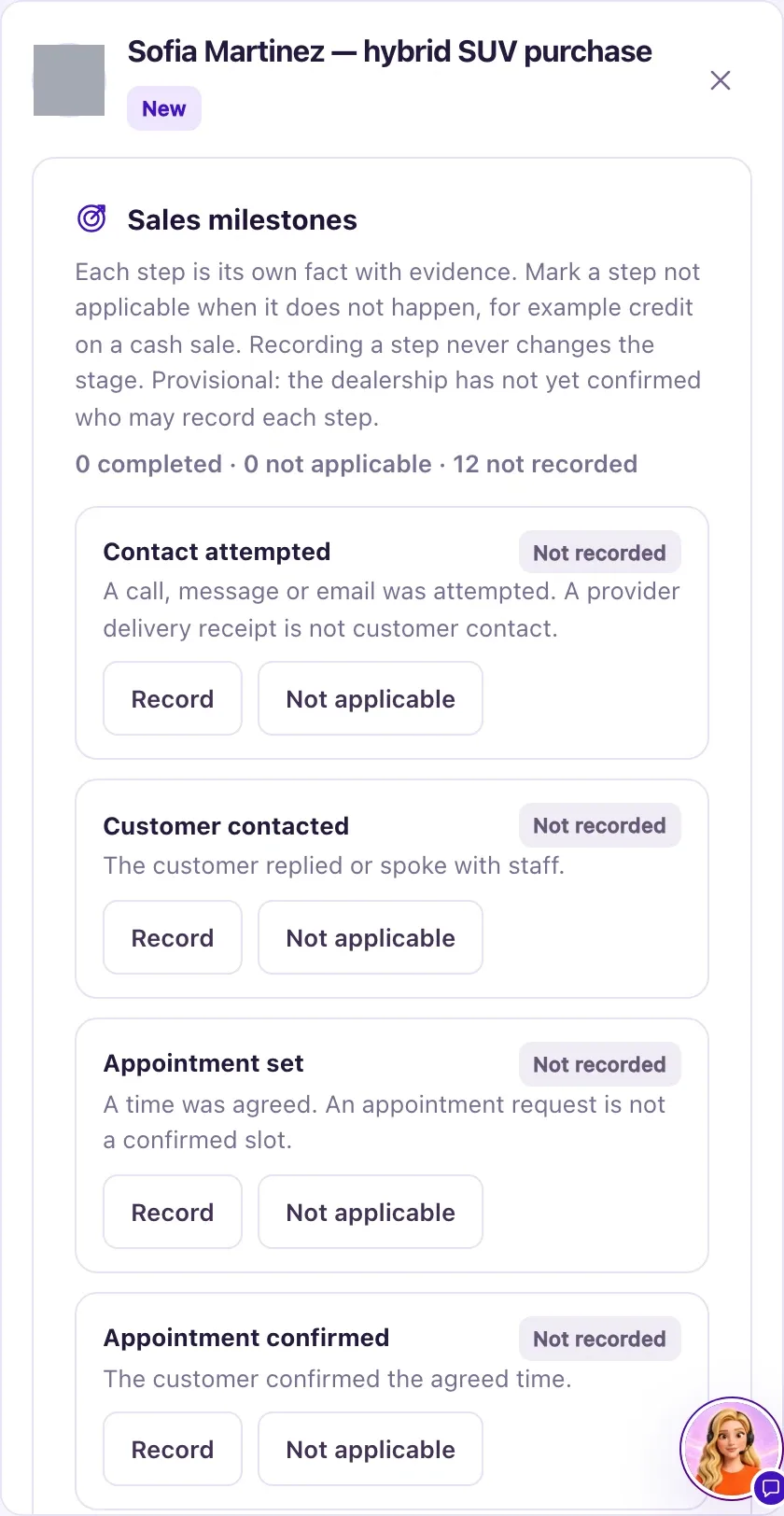
The tabs are Overview, Activity (every change, 20 at a time) and Next action. Owners also get Edit opportunity, Record sale, Create proposal and Record commitment. Staff with Sales & delivery access can read it.
How to use it
- To add one by hand, select Create opportunity on the board.
- Enter the Title, choose the Contact (or Create a new contact) and the Responsible owner.
- Enter the Next action, plus any budget (with its currency), purchase intent, timing and preferences the customer stated, and add Vehicle interests if you know them.
- Fill in Source & evidence: the Source, the Effective date and a Source / reference such as "phone call with the customer on Oct 5". Select Create opportunity. It starts in New.
- To move a deal, open it and select Edit opportunity.
- Change Status. For Nurture, fill in the Nurture reason, the review time, its time zone and the Responsible owner. For Lost, fill in the loss reason (or write Unknown).
- Enter the Reason for change and select Save changes.
- To mark it Won, select Record sale and save the sale. You can't pick Won by hand.
- To record a step such as a test drive, select Record (or Update) next to it under Sales milestones.
What the data means
| Stage | What it means |
|---|---|
| New | Every opportunity starts here |
| Engaged | Set by your team |
| Working deal | Set by your team |
| Nurture | Not ready yet, not lost. The review becomes the owner's My Work task "Review nurture: title"; nothing is sent |
| Won | Set only by recording a sale. While that sale stands, Won can't be changed |
| Lost | Needs a loss reason, or Unknown |
Recording a sales milestone never changes the stage. Review suggestion next to a milestone means QualiFlow found evidence for it; you decide.
Owner shows "Unassigned" when nobody is set, and "Needs reassignment" when the person is no longer an active Owner. "Contact restricted" means the customer opted out of some channels: review the Contact before you send anything.
Possible issues and fixes
Save is refused when I change the stage
Symptom: Save changes shows a message such as "Record a reason for this stage change." or "Record a loss reason, or explicitly enter Unknown."
Why: Every stage change needs a reason. Nurture also needs its reason, review time, time zone and owner; Lost needs a loss reason; a budget needs a three-letter currency.
Fix: Fill in the field the message names, for example Reason for change or Budget currency (USD), and save again.
How to check: The save succeeds and Activity shows the change.
I can't choose Won
Symptom: The message "Won is controlled by an evidenced sale. Use Record sale." appears.
Why: Won is set only by recording the sale, so the deal and the vehicle stay in step.
Fix: Open the opportunity, select Record sale and save the sale.
How to check: The card moves to Won.
I can't change a Won opportunity
Symptom: You try to move a Won opportunity and are told an agreed sale still supports it.
Why: While the sale stands, the opportunity stays Won.
Fix: In Sales & delivery, use Cancel sale (before delivery) or Record reversal (after delivery). The opportunity is then flagged for review; choose its real stage, such as Working deal, Nurture or Lost.
How to check: Edit opportunity saves with the new stage.
Record sale or Create proposal is missing
Symptom: The buttons are not on the opportunity.
Why: They are hidden once the opportunity is Won or Lost, and only Owners can use them.
Fix: For a new deal with the same customer, create a new opportunity. Staff ask an Owner.
How to check: The buttons show on an open opportunity for an Owner.
The Contact can't be changed
Symptom: The Contact field is locked when you edit the opportunity.
Why: The Contact is fixed once the opportunity is saved, so its history stays true.
Fix: Create a new opportunity for the right Contact.
How to check: The new opportunity shows the right customer.
