
What it is
Settings → Calls (under Channels & scheduling) decides what every Aria phone call keeps: the calls she answers on your numbers, Aria Campaign calls and the calls she makes from a note on a contact. It covers the transcript, the AI summary, the audio recording, and the sentence Aria says at the start of every call.
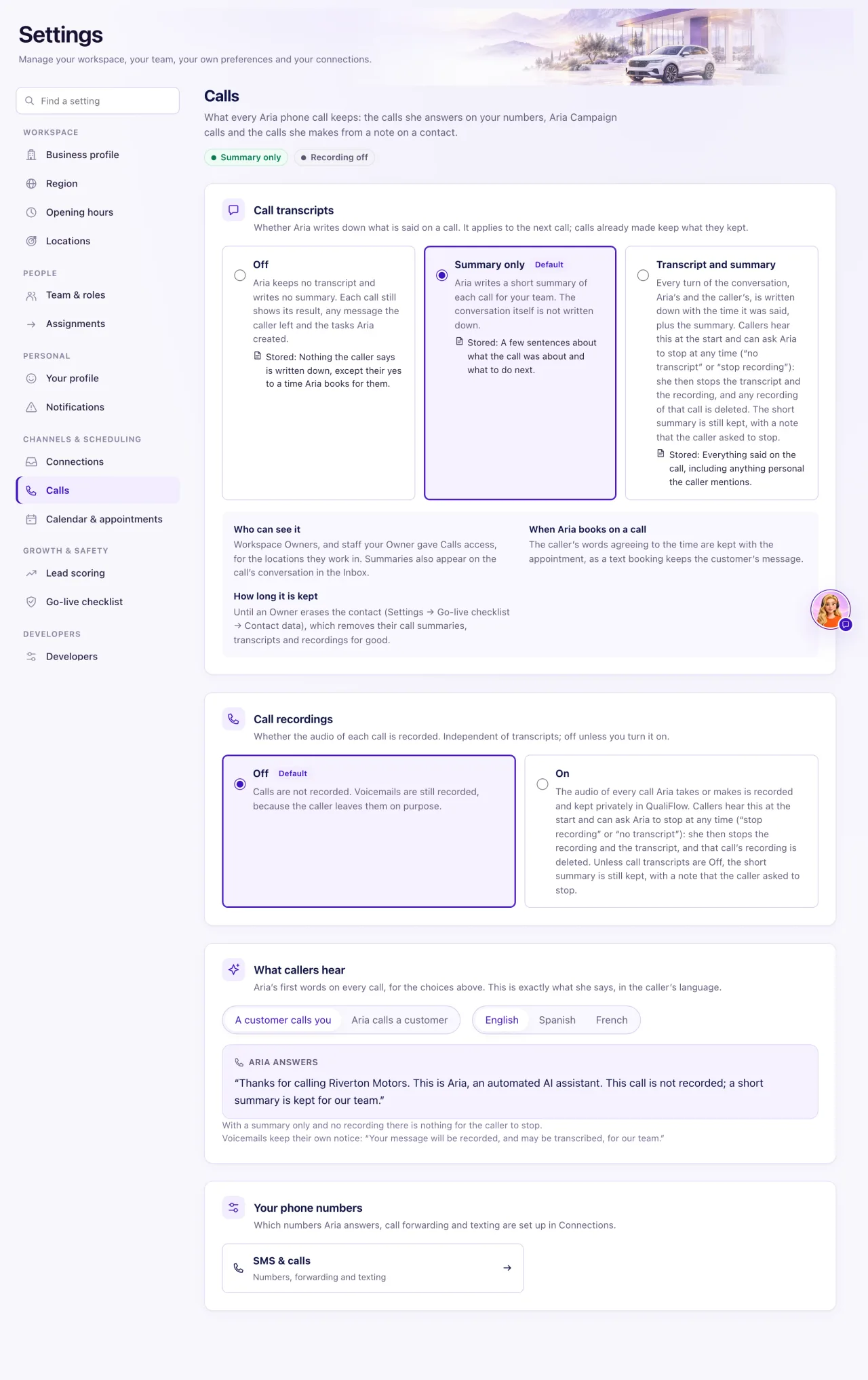
Everyone can open the page and see the current choices. Only a workspace Owner can change them; anyone else sees Only a workspace Owner can change these, greyed-out choices and no Save call settings, so ask your Owner. The footer shows who changed them last ("Last changed by"). A change applies from the next call: each call keeps what the setting allowed when it started.
Each call then shows what it kept in Calls: a Summary, a Transcript of every line Aria and the caller said, and a Recording. This page doesn't connect numbers or decide when Aria answers; numbers and call forwarding are in Settings → Connections → SMS & calls. Calls your team makes from their own phones are never recorded or transcribed by QualiFlow.

How to use it
- Open Settings → Calls.
- Under Call transcripts, choose Off, Summary only (the default) or Transcript and summary.
- Under Call recordings, choose Off (the default) or On. Recordings are independent of transcripts.
- Under What callers hear, select A customer calls you or Aria calls a customer, and English, Spanish or French, to read Aria's exact first words. If the caller asks to stop shows what she says then.
- Select Save call settings on the save bar. Nothing is saved before that; Discard puts the saved choices back. If saving shows These settings changed, someone else saved first: select Reload the latest and make your change again.
- If you switched recording on, the Turn on call recording? window opens. Select Turn on recording, or Keep it off to cancel.
- To read a call, open Calls → Incoming. Aria's summary is on the call's row. In the Inbox, the call's card in the customer's conversation (incoming and outgoing calls alike) shows the same summary, the recording player and Show transcript, as far as the call kept them; select Open the call in Calls to go to the call.
- Select Show transcript and recording. It reads Show transcript, Show recording or Show what this call kept when the call kept less.
- Press Play on the recording player and choose 1×, 1.25×, 1.5× or 2×. The audio loads only when you press Play.
- Select Show full transcript to read every line, and Copy transcript to copy it. A voicemail shows its Voicemail transcript and Voicemail player.
- An Aria Campaign call shows the same under What Aria's call kept in its details on History. A call Aria made from a note shows it on that contact's Aria note.
What the data means
| Choice | What Aria keeps |
|---|---|
| Off | No transcript and no summary. The call's result, any message the caller left and Aria's tasks are still kept. |
| Summary only | A few sentences about what the call was about and what to do next. The conversation isn't written down. |
| Transcript and summary | Every turn, Aria's and the caller's, with the time it was said, plus the summary. It includes anything personal the caller mentions. |
| Badge on a call | What it means |
|---|---|
| Summary only, Transcript and summary, Transcripts off | The transcript choice that applied to this call |
| No transcript, Partial transcript | Transcripts were on, but nothing or only part was written down |
| Recorded | The recording is saved and can be played |
| Recording being saved | Usually ready about a minute after the call ends |
| Not recorded | Recording was off for this call |
| Caller asked to stop, Recording deleted | The caller asked Aria to stop; the recording was deleted |
Aria always says what the call keeps, right after she introduces herself. For example, with Summary only and recording Off: "This call is not recorded; a short summary is kept for our team." When more than a summary is kept, the caller can say "stop recording" or "no transcript" at any time. Either request stops both: the recording is deleted, and the call shows Caller asked to stop. Unless transcripts are Off, the short summary is still kept.
Call recordings On records the audio of every call Aria takes or makes. Recordings play only inside QualiFlow, for workspace Owners and staff your Owner gave Calls access, for the locations they work in. There is no download button and no public link. The same rule applies to the call card in the Inbox: staff without Calls access see only the call's first line, with no summary, transcript or player. Voicemails are always recorded, because the caller leaves them on purpose. Everything a call kept stays until an Owner erases the contact in Settings → Go-live checklist → Contact data.
Possible issues and fixes
A call has no transcript
Symptom: The call shows Summary only or Transcripts off, or says "Only a summary was kept…", including calls made before you changed the setting.
Why: Call transcripts weren't set to Transcript and summary when the call took place. Each call keeps the choice that was in force when it started.
Fix: An Owner opens Settings → Calls, chooses Transcript and summary under Call transcripts and selects Save call settings. Calls already made never gain a transcript.
How to check: The next Aria call shows Transcript and summary and offers Show transcript.
A call says "No recording" or won't play
Symptom: The call shows Not recorded, No recording, Recording being saved or Recording save failed, or the player won't start.
Why: Recording is off by default, the recording is still being saved (about a minute after the call), it couldn't be started or saved on that call, or the contact was erased.
Fix: Read the badge and the sentence in the panel. Wait a minute and open the call again. To record future calls, an Owner chooses On under Call recordings in Settings → Calls and confirms; callers hear that the call is recorded. If the player won't start, reload and press Play again.
How to check: The call shows Recorded and Play works.
The caller said "stop" and the transcript and recording are gone
Symptom: The call shows Caller asked to stop, with No transcript and Recording deleted.
Why: Any stop request, such as "no transcript" or "stop recording", stops both at that moment and deletes the call's recording. Aria's short summary is still kept, with a note that the caller asked to stop, unless transcripts are Off.
Fix: Nothing to fix, and deleted audio can't be restored. Use the summary and any "Call back: …" task in My Work.
How to check: Later calls follow your Settings → Calls choices.
A voicemail has no transcript
Symptom: The voicemail says "The transcript is being prepared. It usually takes a minute." for a long time, or "The transcript is unavailable for this voicemail. Listen to the message instead."
Why: It is still being prepared, AI is off or its monthly limit is used up, or the message was silent or too short.
Fix: Wait a minute and reload. Play the voicemail: the audio is always kept. An Owner checks that Use AI in this workspace is on and under its limit in Settings → Go-live checklist.
How to check: The next voicemail shows its text within about a minute.
