
What it is
Service progress & work, on each service request, records each stage of the job, from the appointment to pickup, and the work lines with their estimates and the customer's decisions. It stays separate from the request's status: booking, work approval, repair completion and pickup are each recorded on their own.
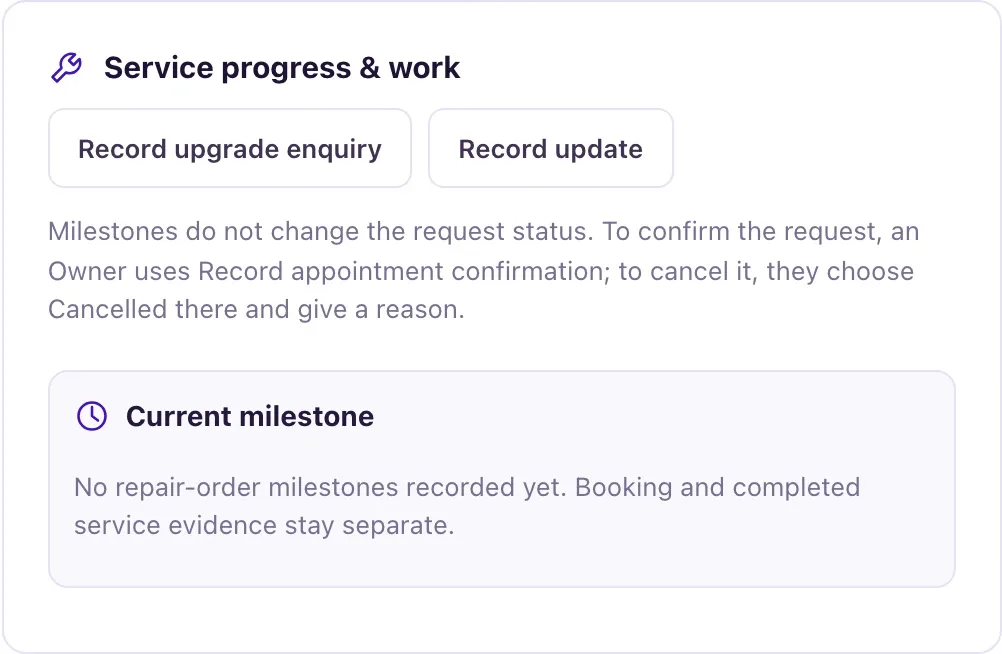
Only Owners record progress. Staff with Service access can read the progress and its history.
How to use it
- Open Service and select the request.
- Under Service progress & work, select Record update.
- Choose the Milestone, for example Repair order opened, Checked in, Diagnosis pending, Estimate approval, Parts delay, Work in progress, Repair order completed, Vehicle ready or Picked up.
- Enter the Repair order or staff reference (needed from Repair order opened onwards), When it happened, the Source reference and the Evidence for this milestone.
- To add work, select Add work line: the Work description, Amount and Currency code, the estimate source and the Work state (Proposed, Approved, Declined, In progress, Performed or Cancelled), with the customer's decision.
- Select Save update. The panel shows the current milestone, the work lines and Milestone history.
- If a service customer wants to buy, lease, trade in or upgrade, select Record upgrade inquiry, paste their exact words and a reference, and select Create separate sales inquiry.
What the data means
Milestones are recorded when they happen, never ahead. They follow the repair order's order unless you give a reason. Work must be approved by the customer before it starts. Earlier work lines are never deleted: record a cancellation instead. After Cancelled, record Reopened with a reason before adding more.
A milestone never changes the request's status. While a request is Awaiting confirmation, an Owner confirms it with Record appointment confirmation, or chooses Cancelled there with a reason. After that, an Owner changes its status in Edit service details, with a reason and the required evidence, for example Completed when the work is done. Checked in or any later milestone stops the appointment's remaining reminders. Note for the customer is stored only; there is no automatic "your vehicle is ready" message.
Record upgrade inquiry creates a new opportunity "Customer upgrade inquiry from service" and a task to review it. The service case itself does not change.
Possible issues and fixes
Record update won't save
Symptom: The dialog says "Check the highlighted fields." or "Record an actual milestone time, not a future outcome."
Why: The repair order reference is empty, the time is in the future, the milestone is out of order without a reason, a work line was started without the customer's approval, or the case was cancelled and not reopened.
Fix: Fill in the reference, use a past time, add a Reason, record the customer's approval, or record Reopened first. Appointment confirmed and Repair order completed need the request's confirmation or completion first.
How to check: The panel shows the new milestone in Milestone history.
The customer wasn't told their car is ready
Symptom: You recorded Vehicle ready, but the customer heard nothing.
Why: Service progress is never sent to the customer.
Fix: Message the customer yourself from the Inbox, and set the request to Completed once the work is done.
How to check: The customer has your message.
The upgrade inquiry is refused
Symptom: Create separate sales inquiry doesn't accept the customer's words.
Why: The words must clearly ask to buy, lease, trade in or upgrade. "A repair, part upgrade or loaner request is not enough."
Fix: Paste the customer's exact words, such as "I would like to trade in my vehicle.", with the conversation reference. Or create an opportunity yourself.
How to check: Open sales inquiry opens the new opportunity.
Staff can't find Record update or Record upgrade inquiry
Symptom: The buttons are missing for a Staff member.
Why: Changing service records is for Owners only. Staff can read progress and history.
Fix: Ask an Owner. If a button still shows on a page opened earlier, reload it.
How to check: The Owner can save the update.
