
What it is
Book appointment on Visits books a visit in QualiFlow's own calendar. "Nothing is booked until the action is approved and confirmed." Every booking is checked against the resources' hours and capacity, the vehicle and the customer, when you prepare it and again when you approve and confirm it.
Simple setup (new): you don't need to set anything up first. QualiFlow creates your location and makes every active team member bookable, on your Opening hours, closed on public holidays (US) and on days you add, with 3 visits at the same time unless you change it in Settings → Booking. Pick the customer, the type, a free time and, if you like, a salesperson and a car; with no salesperson chosen, the customer's own salesperson takes the visit when free, else the free team member with the fewest visits that day. When a time can't be booked, the message says why, for example "We're closed Sundays", "Closed – Christmas Day" or "Already booked at that time: 3 visits are booked at 2:00 PM… Try 2:30 PM."
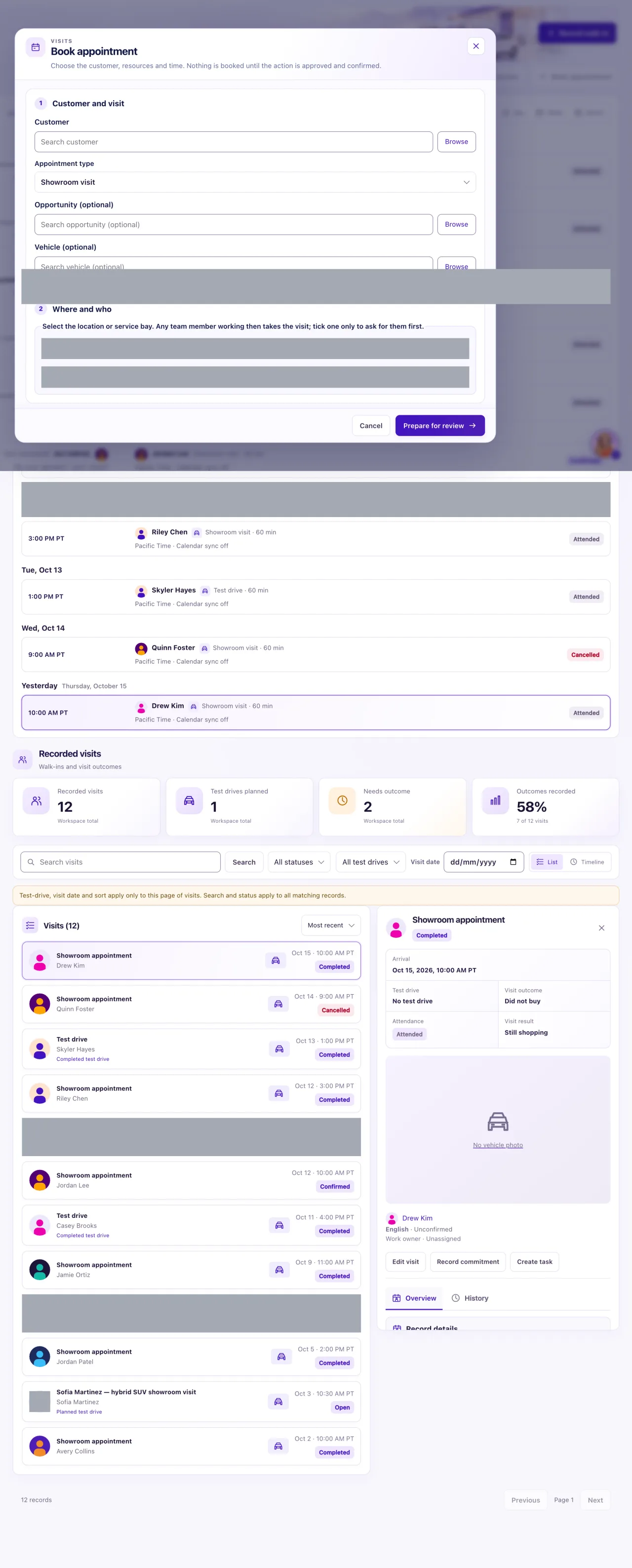
The same simple form for everyone (new): dealerships with their own booking resources get the same form. QualiFlow picks the place for you: the location (or, for a service visit, the service bay) that takes this type of visit, at the location chosen in the top bar. If that place has no free time in the search, Find available times tries your other matching places and uses the first one with free times. Change place / resource appears only when more than one place fits, or you have service bays or car resources; it opens the full list.
How to use it
- Open Visits and select Book appointment.
- Choose the Customer, the Appointment type, an Opportunity (optional) and, for a test drive, the Vehicle.
- Under Salesperson (optional), leave Anyone free (the customer's salesperson first) or choose who takes the visit. The place is picked for you and shown under the box ("At place"). To use another place, open Change place / resource and tick it.
- Under When, set the Start date and time, Time zone, Duration (min) (5 to 240) and any buffers.
- Optional: select Find available times. It searches the next seven days from the start time and shows up to eight free times; More available times shows the next page. Pick one.
- Type the customer's Exact customer confirmation of the slot, type, location and vehicle.
- Owner: select Book appointment (or Reschedule). It is booked in one step, because the Owner who prepares it is also its approver. If a step is refused, it waits in Action review below with the reason.
- Staff: select Prepare for review. An Owner or approver then selects Approve exact action, then Confirm execution, in Action review within 30 minutes.
What the data means
A service visit needs a Service bay. A test drive needs the car to be Available and Ready in Inventory, not held by a sale, and not already on another test drive at that time. If the location's Test drives of any available car switch is off, the car needs its own Vehicle resource.
A prepared booking that isn't approved and confirmed within 30 minutes expires: "Approval expired or material sources changed. Prepare a new action." Up to 100 bookings, moves and cancellations can wait at once.
Booking a test drive sets the visit's test drive to Planned. Confirming the booking starts the appointment reminders when that journey has a sender.
Possible issues and fixes
The booking is refused: outside opening hours, already booked or nobody free
Symptom: The message starts with the reason: "Outside opening hours: Resource is closed at that time…", "Already booked at that time: Resource is full then…" or "No team member is free at that time…". Under it, Next free times lists the next times that work.
Why: The slot, with the minutes kept free before and after, is outside a resource's hours or on a holiday date, the location or bay is full, the car has another test drive, or no staff member's hours cover it. Only the resources' own hours count, not Settings.
Fix: Select one of the Next free times and book again. Or shorten the buffers, or fix the hours in Settings → Opening hours or Settings → Booking.
How to check: The booking succeeds.
No resource for this type
Symptom: "No resource for this type: …", for example a service appointment with no service bay, or no location chosen.
Why: The booking needs a place (a location, or a service bay for service) and at least one bookable team member.
Fix: Add the missing resource in Settings → Booking → Advanced, then tick it on the booking.
How to check: Find available times lists times.
A test drive is refused
Symptom: "Vehicle availability is not recorded as available. Recheck current stock." or "Physical readiness is not confirmed…".
Why: The car isn't Available (Inbound doesn't count) or Ready, a sale holds it, it's archived, or the location doesn't take test drives of every car.
Fix: Fix the car in Inventory, choose another car, or turn on Test drives of any available car for the location.
How to check: Find available times lists times for the test drive.
Find available times shows nothing or is greyed out
Symptom: The button stays grey, or "No recorded slots in the remaining search range. Try another date or check resource hours."
Why: No start time, no place for this type, or no place open for the whole visit in seven days. A place set to Another calendar must confirm blocks the search. A team member on it never does: Settings → Booking offers a Fix.
Fix: Start at the beginning of a day you're open, shorten the duration, or tick a place under Change place / resource. Check the hours in Settings → Opening hours or Settings → Booking.
How to check: Free times are listed and "Slot selected" appears when you pick one.
Other refusal messages
Symptom: "That time has already passed. Choose a future time.", "Check the date and time: it is missing or not valid.", "Restore this Contact before scheduling." or "Choose an open opportunity belonging to this customer."
Why: The time has passed, the customer is in Trash, or the opportunity is Won, Lost or someone else's.
Fix: Choose a later time, restore the Contact from Trash, or leave Opportunity (optional) empty.
How to check: The booking succeeds.
