
What it is
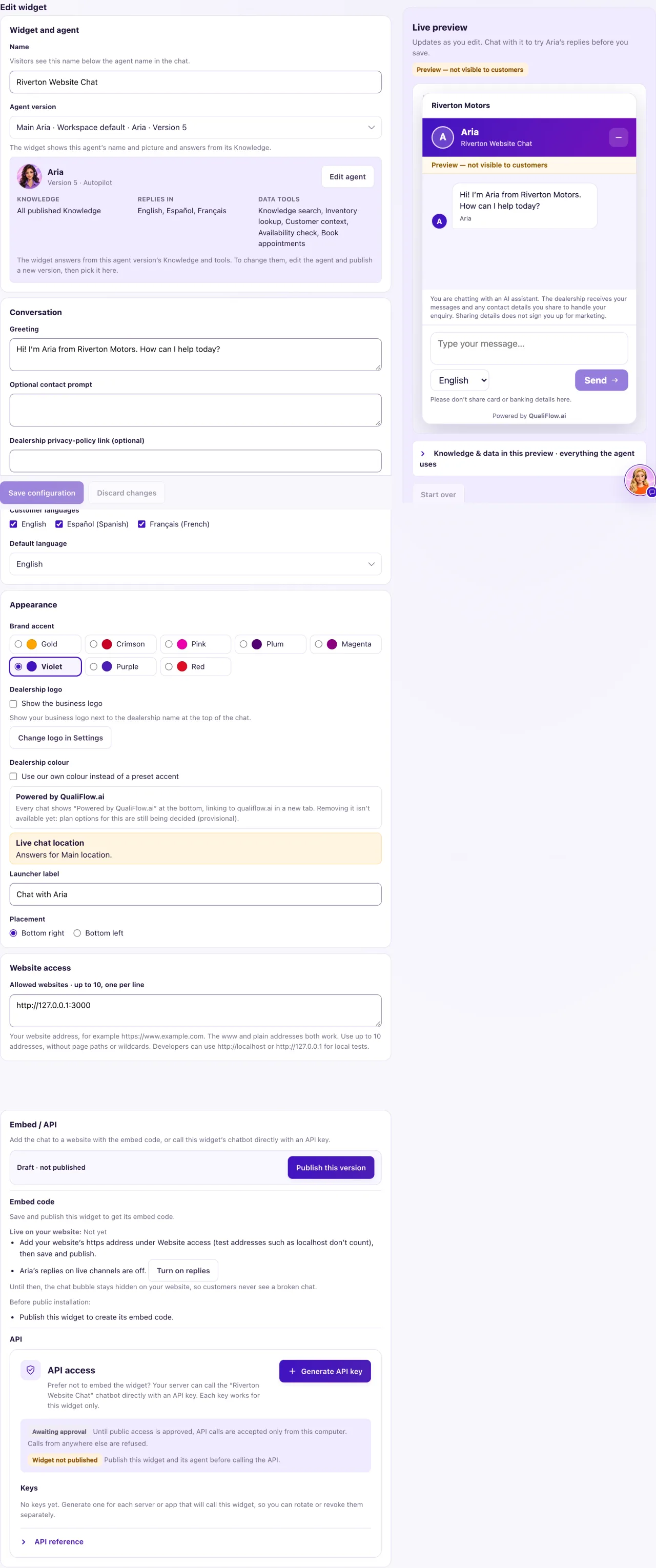
Each website chat widget has its own settings in Chatbot, on the Setup and Design tabs: the agent that answers, what the chat says first, the languages, the colours and logo, where the button sits, and the location it answers for. The Live preview on the right updates as you edit and answers like the real agent, without reaching customers.
How to use it
- Open Chatbot and select the widget under Saved widgets.
- Under Widget and agent, check the Name (visitors see it under the agent's name) and the Agent version.
- Under Conversation, write the Greeting and, if you like, an Optional contact prompt, such as asking for a name and phone number.
- Tick the Customer languages and choose the Default language the chat opens in.
- Add an optional Dealership privacy-policy link (an https address).
- Under Location, check Live chat location. With two or more locations, select Bind with the location you chose in the location switcher.
- Open the Design tab for the colours, logo, launcher label and placement, and much more (see Design your website chat).
- Chat with the Live preview to try the replies. Select Start over to begin a new test chat.
- Select Save configuration, then Publish this version.
What the data means
Greeting is the first message visitors see (up to 600 characters). The Optional contact prompt is added after it (up to 300 characters). It is plain text: there are no form fields or consent box in the chat.
Customer languages are English, Español (Spanish) and Français (French). At least one stays ticked, and every ticked language must be one the chosen agent speaks. Visitors can switch language when two or more are ticked.
Brand accent offers Gold, Crimson, Pink, Plum, Magenta, Violet, Purple and Red. Your own colour must keep white text readable (a contrast of at least 4.5 to 1). The logo comes from your business logo in Settings. Every chat shows "Powered by QualiFlow.ai" at the bottom.
Live chat location is the location the chat answers for, such as "Answers for your main location once saved." Website chats are filed under this location.
Visitors are told that an AI assistant answers and that your dealership receives their messages. Sharing a phone number or email in the chat does not give marketing permission.
Possible issues and fixes
Saving says "Choose only languages enabled in the selected published agent version."
Symptom: Save configuration or Publish this version is refused.
Why: A ticked language isn't one the agent's published version speaks.
Fix: Untick that language, or add it to the agent in Aria Lab → Agents and publish the agent. Then save and publish the widget.
How to check: The widget saves and publishes without a message.
The colour says "White text on this colour would be hard to read"
Symptom: Your own dealership colour is refused.
Why: Visitors couldn't read white text on that colour. It needs a contrast of at least 4.5 to 1.
Fix: Choose a darker shade, or use a Brand accent instead.
How to check: The warning disappears, and the preview shows your colour.
The logo option says no business logo is saved
Symptom: Show the business logo can't be turned on.
Why: The chat uses the logo saved in Settings, and none is saved yet.
Fix: Add a JPG, PNG or WebP logo in Settings, then tick Show the business logo. If the logo changed later, select Use current logo, then save and publish again.
How to check: The preview shows your logo next to the dealership name.
