
What it is
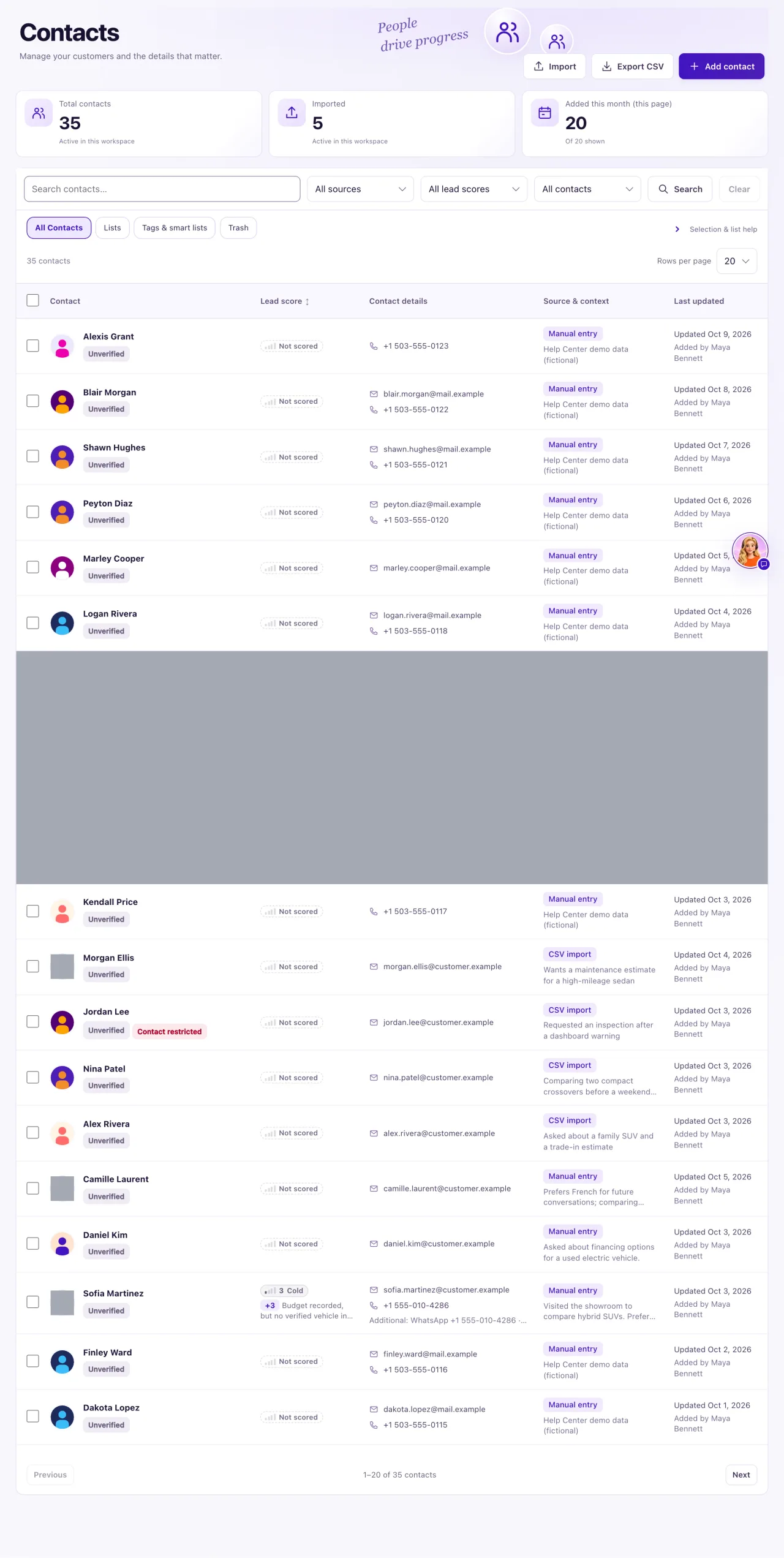
Contacts is your dealership's list of customers and prospects. From here you find people, open their details, group them into lists and tags, import or export them, and start Aria campaigns.
Open it from Contacts in the sidebar. Owners can do everything. A Staff member opens Contacts only when their Owner gave them Contacts access in Settings → Team & roles, and then can search and read contacts but not change them. Add contact, Import, Export CSV, the Lists, Tags & smart lists and Trash buttons and the bulk actions show for Owners only.
How to use it
- Select Contacts in the sidebar.
- Type part of a name, email or phone in Search contacts… and select Search. Search also matches extra emails, phones, WhatsApp numbers, Instagram handles and Facebook links. It is not case-sensitive.
- To narrow the list, select Filters above the table. The small panel that opens has Source (All sources, Manual entry, CSV import, or a channel such as Facebook Messenger, Instagram, WhatsApp, Text message, Email, Website chat, Website form or Phone call for contacts QualiFlow created when someone first reached you there) Lead score (All lead scores, Hot, Warm, Cool, Cold or Not scored yet) and, when it applies, which contacts to show (All contacts, With email or With phone). Select Apply filters; Reset clears the choices. The button shows how many filters are on, for example Filters (2). Clear resets the search and filters.
- Use Sort to choose Newest added first, Lead score high→low or Lead score low→high. Selecting the Lead score column header does the same.
- Use Rows per page (10, 20 or 50) and Previous / Next to move through the list.
- Select a contact's name to open the details panel beside the list. Rows have no action buttons of their own: Edit contact, Open full profile and (in the ⋯ menu) Move to trash are in the panel.
- Owners: tick the boxes in front of contacts (up to 100) to open the bulk bar: Add to list, Tag, Create list from selection, Export selected, Create Aria campaign, Aria note and Move to Trash. Clear selection unticks everything.
- Owners: select Trash to see contacts moved to Trash, and All Contacts to go back.
What the data means
The tiles: Total contacts is every active contact in the workspace, so a search does not change it; the line above the table ("N contacts matching your filters") is the search result. Imported counts active contacts that came from an import. Added this month (this page) counts only the rows on the page you are looking at, in the workspace time zone. With a list open, the first tile is List members; in Trash it is Contacts in Trash.
| Badge on a row | Meaning |
|---|---|
| Unverified | The contact has an email or phone. QualiFlow never marks details verified |
| No contact details | No email and no phone recorded |
| Contact restricted | An opt-out or do-not-contact request is recorded |
| Restrictions need review | Opt-out evidence, for example from an import, matches this contact |
| In Trash | The contact is in Trash |
The With email (this page) and With phone (this page) filter only looks at the rows already on the page. Newest added first sorts by the date a contact was added, not the Last updated date shown. Unscored contacts sort last both ways. Paging stops at 10,000 records: narrow your search for more.
Possible issues and fixes
A contact shows "Unnamed contact", "Text sender" or "Phone caller"
Symptom: The list shows a placeholder instead of a name.
Why: A text, email or call carries no name, so a contact made from one uses Text sender, Email sender or Phone caller until someone names it. Messenger, Instagram and WhatsApp use the name the channel shares, otherwise Messenger customer, Instagram customer or WhatsApp sender. A form with no name, or an import whose name was split into first and last name columns, gives Unnamed contact.
Fix: An Owner opens the contact, selects Edit contact, types the Display name and selects Save contact. QualiFlow keeps the name you type.
How to check: The list, the details panel and the Inbox show the new name.
I can't find a contact I know we have
Symptom: A search finds nothing for someone you know is in QualiFlow.
Why: A filter is still on, the contact is in Trash (merged records go there too), or the phone was typed with different spacing or country code. Messenger and Instagram contacts may have no phone or email at all.
Fix:
- Select Clear, then All Contacts.
- Search part of the name, or the last 7 digits of the phone.
- Open Trash and search there. To bring someone back, tick them and choose Restore.
How to check: The contact shows in the list and its details panel opens.
A team member can't open Contacts or can't change anything
Symptom: They see "Ask your Owner for access", or the page says "View only".
Why: Their Owner has not given them Contacts access, or they have View. Adding, editing, importing, tagging, merging and Trash are for Owners only.
Fix: An Owner opens Settings → Team & roles, opens the person and gives them Contacts → View, then makes any changes to contacts for them.
How to check: The Staff member sees the list and can open a contact's details.
Total contacts didn't change when I searched
Symptom: The first tile shows the same number before and after a search.
Why: On All Contacts the first tile is always the workspace total.
Fix: Nothing is wrong. Read the line above the table, "N contacts matching your filters", for the search result.
How to check: The line above the table changes when you search or filter.
Added this month looks too low
Symptom: Added this month (this page) shows a few contacts, but you added many more.
Why: The tile counts only the rows on the page you are looking at, in the workspace time zone, like the dates in the table.
Fix: Raise Rows per page, or make a smart list with the rule Added to QualiFlow in the last 30 days and select Show Contacts. A rolling 30-day period is not the same as the calendar month, so the two numbers can differ.
How to check: The smart list's count matches the contacts you added.
