
What it is
Nora is QualiFlow's help assistant. She answers questions about setting up and using QualiFlow, and links you to the exact screen. When something needs the QualiFlow team, she helps you save a support ticket.
You find her in three places:
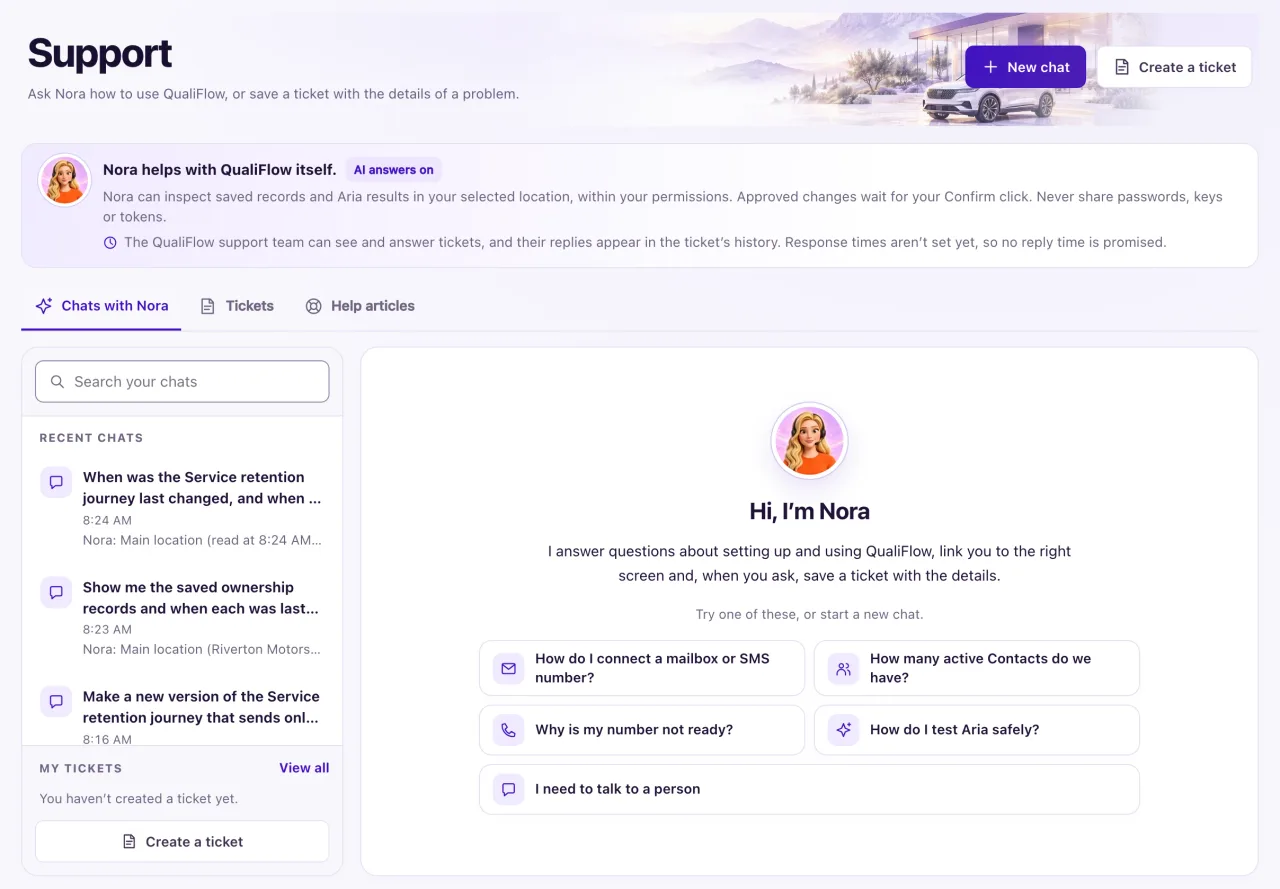
- Support in the sidebar, just above Settings. This opens the Support page on the Chats with Nora tab.
- The round button in the bottom-right corner of every supported workspace page except Support, Journeys and Analytics. Hovering shows Ask Nora, or Nora has answered when a reply arrived while the chat was minimized. On a wide screen, the page moves left while the chat box is open, so the box never covers the page's buttons.
- Your name at the top right → Report a problem, for a quick bug note (see "Support tickets and problem reports").
Every active member, Owner or Staff, has their own private Nora chats. Aria, the customer assistant, can't read them.
One Nora, two views: the floating chat and Create with Nora beside a CRM form share your conversation, message box and permitted tools. On Campaigns, Create with Nora opens a blank Campaign Designer draft; if a detail is missing she asks one short question at a time, then fills the canvas. Nora never starts, sends, schedules or approves a campaign. Aria campaigns and Aria follows up stay separate. Ask in floating Nora to open and fill a contact, opportunity or proposal: the floating conversation stays open beside the form, and the attached conversation stays closed. On Inventory, Nora helps edit an existing vehicle through the visible edit form (Edit with Nora); she never invents prices and never claims stock changed until you Save. On Ownership she can check permitted ownership facts; she does not create ownership. Journeys and Analytics have no Nora button. Ask about Journeys from another supported page; Nora can explain them and inspect permitted journey facts but never change them. On phones, Contact fields scroll above the bounded chat. Select Create with Nora in the form to switch to the attached view; minimizing floating Nora never opens it automatically. Lead scoring settings and automation editors work the same way. Manual corrections stay in the same draft. Nothing is saved until you select Create/Save or Approve and create/save. Your role, location and plan still apply; saved-record inspection is Owner-only.
You can also ask ordinary help or billing questions, review a support ticket or ask for a specialist while using the form view. If you change the form while Nora answers, she keeps your newer edits and asks you to try again. Reopening an old chat never reapplies its earlier draft changes.
How to use it
- Select the round Nora button, or open Support and select New chat.
- Type your question, or pick one of the suggested questions such as "Why is my number not ready?". In the small chat window, the Send message button sits inside the text box. The box grows as you write. Enter sends; Shift+Enter adds a line.
- Say which screen you are on and copy any message word for word. Nora answers better with the exact text.
- Read her answer. Longer answers use short paragraphs, headings, bold words, steps, lists, code and small tables when that makes them easier to scan. Text that looks like a web link, image or raw web code stays inactive. Use Nora's separate verified Open … buttons to go to the exact screen, record or dialog.
- To fix something for you, Nora can prepare a change on a confirmation card. Nothing changes until you select Confirm (see "Nora can do it for you (Confirm)").
- In the small chat window, use Expand to Support to open the chat full size, Previous chats to go back to an earlier chat and My tickets to see your tickets.
- If you need a person, ask Nora or select the person icon in the chat header, labelled Talk to a QualiFlow specialist. Nora checks whether live chat is available or offers a ticket. Review any ticket summary before saving it.
- To find an old chat, open Support and type in Search your chats. Recent chats lists your latest chats.
What the data means
The About Nora box on the Support page shows AI answers on when Nora can write answers, or Help search only when she answers from published help articles. She can still save tickets either way. Nora can format an answer for readability, but links, images and raw web code written inside it do not become active. Open Support → Help articles when you want the longer write-up, and use her separate verified Open … buttons for screens. "Read directly from saved records." means the answer came from your records, not from help articles.
What Nora can do: answer how-to questions from published help; read saved records and live facts for your selected location (contacts, inventory, ownership, tasks, journeys) within your permissions; help edit an existing Inventory vehicle (Edit with Nora; you Save); check Ownership without creating it; find a record by name (Owners) with an Open button; check tickets; quote your plan and published prices; answer in English, Spanish or French.
What Nora can't do: switch locations, bypass permissions, reveal customer email/phone, send customer messages, connect channels, delete data, change consent or STOP, change roles, approve Aria live rules, invent inventory prices, claim stock changed before Save, create ownership, change a journey, or appear on Journeys or Analytics. Draft fields you supply stay private to the form. Billing cards are Owner-only. She never needs passwords or tokens.
Limits: a message can be up to 2,000 characters. A chat holds up to 200 messages; then you start a new chat. Each person can keep up to 500 chats. You can't attach files or screenshots.
Possible issues and fixes
Nora says "Help search only"
Symptom: The About Nora box says Help search only, and her answers end with a line starting "Answered from published help."
Why: AI is turned off for the workspace, this month's AI limit was reached, or you asked many questions in a short time (each person gets up to 20 AI answers every 10 minutes).
Fix: Read the line under her answer. If it names Settings → Go-live checklist, an Owner turns AI back on or raises the monthly limit there. If it says the AI allowance was reached or AI answers are unavailable, wait a few minutes and ask again. If it keeps happening, create a ticket.
How to check: The box shows AI answers on, and the next answer has no "Answered from published help." line.
Nora's answer doesn't match my screen
Symptom: Nora's steps name a button or page you don't see, or her answer didn't solve the problem.
Why: Nora answers from published help and from live facts. Help can lag behind the app, and some problems need the QualiFlow team.
Fix:
- Ask again with the screen, the button and the exact message.
- If it still doesn't match, select Talk to a person, check the summary and create the ticket. Say what Nora told you.
How to check: Ticket submitted shows a reference such as QF-000123, and the ticket appears under Tickets or My tickets.
Nora describes a page but gives no Open button
Symptom: Nora explains a screen but doesn't link it, or says a record isn't available here.
Why: Staff get links only to pages their Owner opened to them in Settings → Team & roles. Records in another location are not shown in the location you have selected. For work only an Owner does (for example pausing all sending or the Go-live checklist), Nora says an Owner does it and lists the Owners-only article as a plain title without a link.
Fix: Ask your Owner for access to that page, or switch to the right location in the sidebar and ask again.
How to check: Nora's answer shows an Open … button for the page.
The chat says it is full
Symptom: The chat says "This chat is full. Start a new chat to keep asking Nora."
Why: A chat holds up to 200 messages.
Fix: Select New chat. Your old chat stays in Recent chats and Previous chats.
How to check: The new chat opens with Nora's greeting and you can type again.
