
What it is
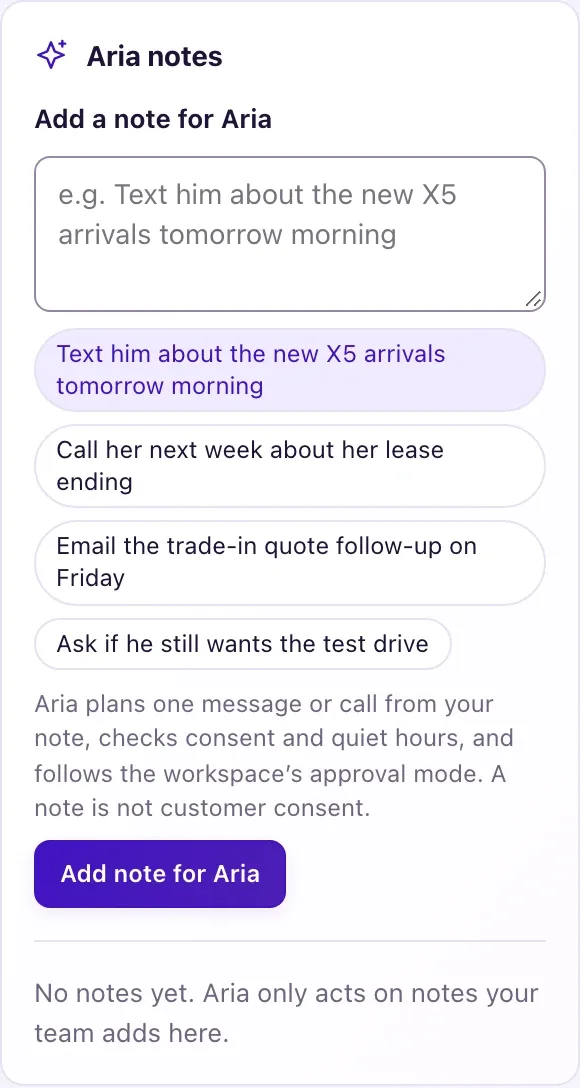
An Aria note is an instruction to Aria about one customer, written the way you would brief a colleague: "Text him about the new X5 arrivals tomorrow morning", "Email the trade-in quote follow-up on Friday", "Ask if he still wants the test drive". Each note becomes one planned message or call.
A note is your team's instruction, never the customer's permission. Before anything is sent, QualiFlow checks the contact has that channel, that permission and opt-outs allow it, and that there is a time inside your allowed sending hours. Aria writes the message herself from the note and what she knows, and never adds prices, dates, stock or promises that aren't in the note.
How to use it
- As an Owner, open the contact's full profile and select Aria note at the top (it jumps to the Aria notes card). Staff with Contacts access can read notes and plans. You can also write one in the Aria note box on Add contact (under More details) or Edit contact. For several contacts at once, tick them in Contacts and select Aria note in the selection bar (see "Give Aria a note for several contacts").
- Type in Add a note for Aria (up to 1,000 characters), or pick an example. Say what to talk about and, if it matters, how (text, email, WhatsApp, Messenger, Instagram or a call) and when (tomorrow, Friday, next week, morning, "at 3 pm").
- Select Add note for Aria. Read the plan line on the card, for example "Aria will text tomorrow at 10:00 AM about the new X5 arrivals."
- In Ask first, the draft waits as Needs approval. An Owner, or a team member with Approve Aria replies, selects Approve. In Autopilot it is Scheduled and goes at the planned time.
- To change it before it goes, select Edit, change the text and select Save and re-plan (or Keep as is). To stop it, select Cancel; nothing is sent.
- If the card says Not sent, read the reason, fix it, then select Edit → Save and re-plan or add a new note. A Not sent note never retries by itself.
- When the customer replies, the conversation carries on in the Inbox like any other.
What the data means
| Status | Meaning |
|---|---|
| Planned | Aria is planning it |
| Needs approval | Ask first: waiting for an approver |
| Scheduled | Approved or Autopilot; goes at the planned time |
| Sent / Done | Sent, or the call finished; the card shows what Aria sent or said |
| Not sent | A check failed. The reason shows and a My Work task is added |
| Cancelled | Someone cancelled it |
With no channel named, Aria uses the one the customer last used. With no day she plans today; with no time it is as soon as possible today, or 10:00 AM on a later day. The time is kept inside your allowed sending hours in the location's time zone (09:00–20:00 when none are set). Notes about sales, offers, new cars and test drives are marketing and need marketing permission; repairs, recalls and pick-up are service.
Possible issues and fixes
"Not sent: … hasn't agreed to receive messages like this from you"
Symptom: The note ends as Not sent with this reason.
Why: There is no permission for that channel and kind of message. A note for Aria isn't customer consent.
Fix: An Owner selects Record permission on Permission & outreach preferences for that channel and purpose, then Edit → Save and re-plan.
With a confirmed booking, write it as a booking confirmation (e.g. "Text to confirm the test drive"): that is a service message, so marketing permission isn't needed. STOP still blocks texts.
How to check: The note shows Scheduled or Needs approval.
"Not sent: … has no phone number, email address or chat on file"
Symptom: The note says the contact has no detail for that channel.
Why: The contact has no phone, email or chat on the channel Aria planned. WhatsApp, Messenger and Instagram notes work only after the customer has written to you there.
Fix: Add the missing detail in Edit contact → Contact channels, or name another channel in the note, then re-plan.
How to check: The plan line names the channel you expect.
"Not sent: connect your dealership's mailbox or email domain first"
Symptom: An email note isn't sent.
Why: Aria never emails customers from a QualiFlow address, and no dealership mailbox or verified email domain is connected.
Fix: An Owner connects Gmail, Outlook, another mailbox or an email domain in Settings → Connections, then re-plans the note.
How to check: The note shows Scheduled or Sent.
"Not sent: … only allows a business message within 24 hours"
Symptom: A Messenger, Instagram or WhatsApp note isn't sent.
Why: Meta allows a business message only within 24 hours of the customer's last message there.
Fix: Wait for the customer to write again, then re-plan the note or add a new one. Or name text or email in the note.
How to check: The note goes and shows Sent.
A note asking Aria to call became a task
Symptom: The card says "Not called: outbound calling by Aria isn't set up for this workspace, so the call is a task for your team in My Work."
Why: Aria places calls only when outbound calling by Aria is set up for your workspace.
Fix: Make the call from the task in My Work.
How to check: The task is done in My Work.
