
What it is
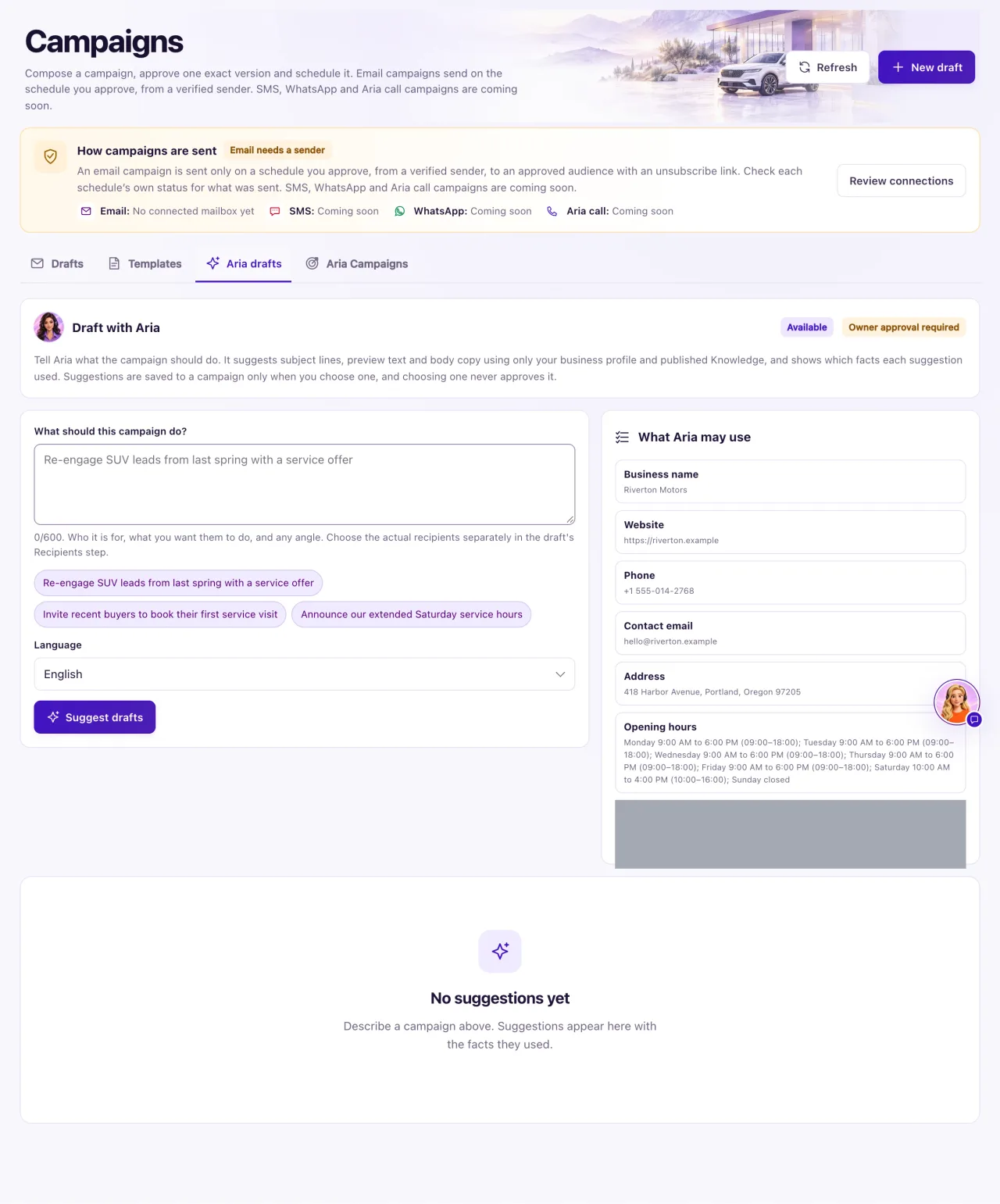
Let Aria write my email (in Campaigns → Emails; it was the Aria drafts tab) is a writing helper for email campaigns. Describe the email and Aria suggests subject lines, preview text and body copy using only your business profile and published Knowledge. She shows which facts each suggestion used.
It sends nothing and saves nothing until you choose a suggestion. Choosing one never approves it: the draft still goes through recipients, approval and scheduling. It is separate from Aria Campaigns, where Aria contacts customers herself.
How to use it
- Open Campaigns, select the Emails tab, then Let Aria write my email.
- Describe the email in What should this campaign do? (10 to 600 characters), or select one of the examples.
- Choose the Language. If you just left an email draft, you can tick Let Aria see the subject and preview text of that draft.
- Select Suggest drafts. While she works the button reads "Aria is drafting…". It usually takes under a minute.
- Read up to three suggestions, each with a subject, preview text, body and Facts used.
- Select Save as new draft, or Replace content of the draft you came from. Replacing makes the draft's next version and ends any approval of it.
- Open the draft and finish it in the email designer.
What the data means
Facts used lists the business facts a suggestion relied on. "No business facts: general wording only." means it used none. A suggestion that used something not on record is removed, and the page says how many were removed.
The What Aria may use panel lists your profile, published Knowledge and verified inventory facts. With no Knowledge published, offers and dates need a Knowledge source; select Open Knowledge to add one.
Inside the email designer, Aria text help can Improve, Shorten, Change tone, Translate, Suggest three subjects and Suggest three preview texts. It keeps your personalization fields, never adds offers, prices or numbers, and changes nothing until you choose Apply.
Possible issues and fixes
Aria is taking longer than usual
Symptom: The page stops waiting before the suggestions appear.
Why: The page waits up to 90 seconds, but the request keeps going.
Fix: Wait a moment, then look under Earlier suggestions, or select Suggest drafts again. It waits for the same request and is never charged twice.
How to check: The suggestions appear under Earlier suggestions.
"You have asked Aria for several drafts in a short time"
Symptom: Suggest drafts is refused with this message, or "Aria is already drafting".
Why: Each person can ask 6 times in 10 minutes, one request at a time.
Fix: Wait for the current request to finish, or try again in a few minutes.
How to check: Suggest drafts works again.
