
What it is
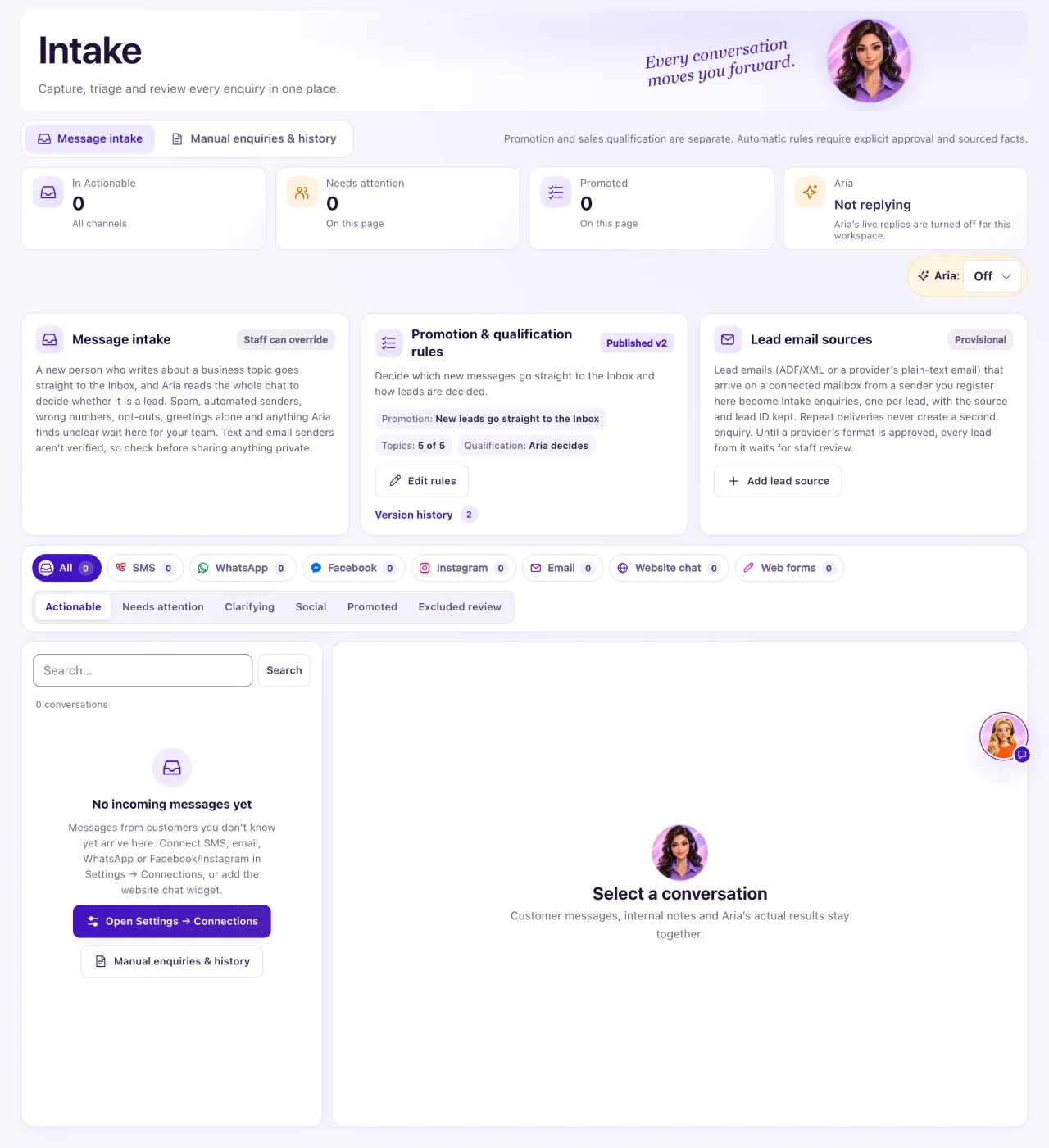
Intake (sidebar CRM → Intake) is where messages wait when a person has to decide what they are. Most new customers never wait here: a new person who writes about a vehicle, service, a delivery, a complaint or a question goes straight to the Inbox, and Aria reads the whole chat to decide whether it is a lead.
Intake has two views: Message intake and Manual inquiries & history. Only Owners can open it.
How to use it
- Open CRM → Intake. It opens on Message intake, with one line saying what Intake does: new business messages go straight to the Inbox, and spam and anything unclear wait here for your team. The three setup cards (message intake, intake rules and lead email sources) open under Learn more.
- Pick a channel chip and a tab: Actionable (every chat still waiting for a person: Needs attention, Clarifying and Social), Needs attention, Clarifying, Social, Promoted or Excluded review. Search matches the name and title.
- Select a conversation and read its reason, for example "Greeting only" or "Aria: unclear, needs a person".
- If it is a real customer, select Move to Inbox: select the lead decision chip under the name (for example Aria: Unclear) to see it, or find it in the ⋯ menu when nothing is decided yet. Your choice always wins over Aria and the rules. While a conversation is open, the Intake title and stat cards hide to give it room, and the setup cards (message intake, intake rules and lead email sources) fold into one Intake setup bar above it. Select the bar to show or hide them; rule changes you haven't saved are kept and the bar shows Unsaved changes.
- To attach the chat to a person, select Review & link or create Contact on the Identity evidence card. Select the card heading to expand or collapse its details. It starts collapsed to leave room for the conversation; reopening it keeps any review details you have entered. For an email or a text, the card shows the Sender email or Sender number it came from.
- Under Who sent this choose An existing Contact or A new person: create their Contact, write a Reason, then select Link Contact & promote or Create Contact & promote. The contact search starts with the sender's address or number, and a new Contact is filled with it.
- If a link was wrong, select Undo identity link and give a reason. History is kept.
- To keep a chat out of the Inbox, select Back to Intake or Not a lead.
Conversation messages keep paragraphs, lists and bold text readable. Delivery errors wrap below the message; expand the delivery details to see the full explanation.
A chat that is in the Inbox is never also waiting in Intake. As soon as a sender is linked to a Contact and the chat moves to the Inbox (by itself, by Aria or by you), it leaves Actionable, Needs attention, Clarifying and Social, and the counts drop with it. It stays listed under Promoted so you can see the decision. Messages and history are never deleted.
What the data means
| Tab | What it holds |
|---|---|
| Needs attention | Chats waiting for a person, including ones an Owner moved Back to Intake |
| Clarifying | A greeting on its own, until the person says what they want |
| Social | Thanks or small talk, and chats Aria decided are not a lead |
| Promoted | A record of chats moved to the Inbox; they are no longer waiting here |
| Excluded review | Opt-outs, wrong numbers, bounces, auto-replies, and chats an Owner marked Not a lead |
New senders become Contacts by themselves. A Facebook, Instagram or WhatsApp sender verified by Meta gets a Contact. Someone who texts your number or emails your mailbox gets one too, or is linked to the one Contact with that exact phone or email (capital letters in an address don't matter). If several Contacts share it, nothing is linked: the card says, for example, "2 Contacts already have this email, so it wasn't linked automatically. Pick the right person:" with their names, and selecting a name opens the review with that Contact chosen. No consent is recorded this way.
If a customer types a phone number or email in a new chat that exactly matches one existing Contact, the chat joins that Contact when the names are compatible. Both histories stay available, and Activity records the link. The chat's new Contact moves to Trash as a merged record. A clearly different name, several matches, an earlier staff identity decision, a restricted sender, or a chat that already has its own saved contact details stays for staff to check. A name alone never joins people, and linking never records marketing permission.
The number on a text and the address on an email are not verified, so check before sharing anything private. Needs attention and Promoted count only the chats on the current page.
Possible issues and fixes
A real customer is waiting in Intake
Symptom: A customer who wants to buy or book is in Intake, not the Inbox.
Why: Their first message was a greeting only, didn't clearly match a topic, came from an address that looks automated, or your rules hold everyone for review. The reason is shown on the chat.
Fix: Select Move to Inbox. If the same reason keeps trapping customers, see "Why is a message waiting in Intake?" and check your rules.
How to check: The chat shows in the Inbox and the lead decision chip reads Staff: moved to Inbox.
A customer wrote, but they're not in Intake or the Inbox
Symptom: You can't find the conversation anywhere.
Why: It is under another tab (a greeting under Clarifying, an opt-out under Excluded review), it belongs to another location, or the message never reached QualiFlow.
Fix: Search and open each tab. Switch the Location switcher. Check the channel is connected in Settings → Connections. If a test message never arrives, create a ticket in Support with the channel and the time.
How to check: A new test message shows in Intake or the Inbox within a minute.
Move to Inbox or linking a Contact fails
Symptom: You see a message such as "This sender has a recorded restriction. Linking or resuming does not clear it." or "A Contact with this email or phone already exists. Link that Contact instead of creating a new one."
Why: The person opted out or the number was reported wrong, a Contact with that phone or email already exists, the contact is in Trash, or someone else changed the conversation.
Fix: Don't link a restricted sender. Choose An existing Contact and search for the one that exists. Restore a contact from Contacts → Trash first. Otherwise reload and try again.
How to check: The Identity evidence card shows Linked to a Contact and the chat is in the Inbox.
No opportunity was created for a lead
Symptom: A buyer was moved to the Inbox, but no opportunity appeared.
Why: An opportunity needs a linked Contact and a vehicle inquiry.
Fix: Link or create the Contact with Review & link or create Contact. If the customer has more than one open opportunity, link the right one from the Inbox.
How to check: The message says "A new opportunity was created for this vehicle inquiry." or that it was linked to the customer's open opportunity.
