
What it is
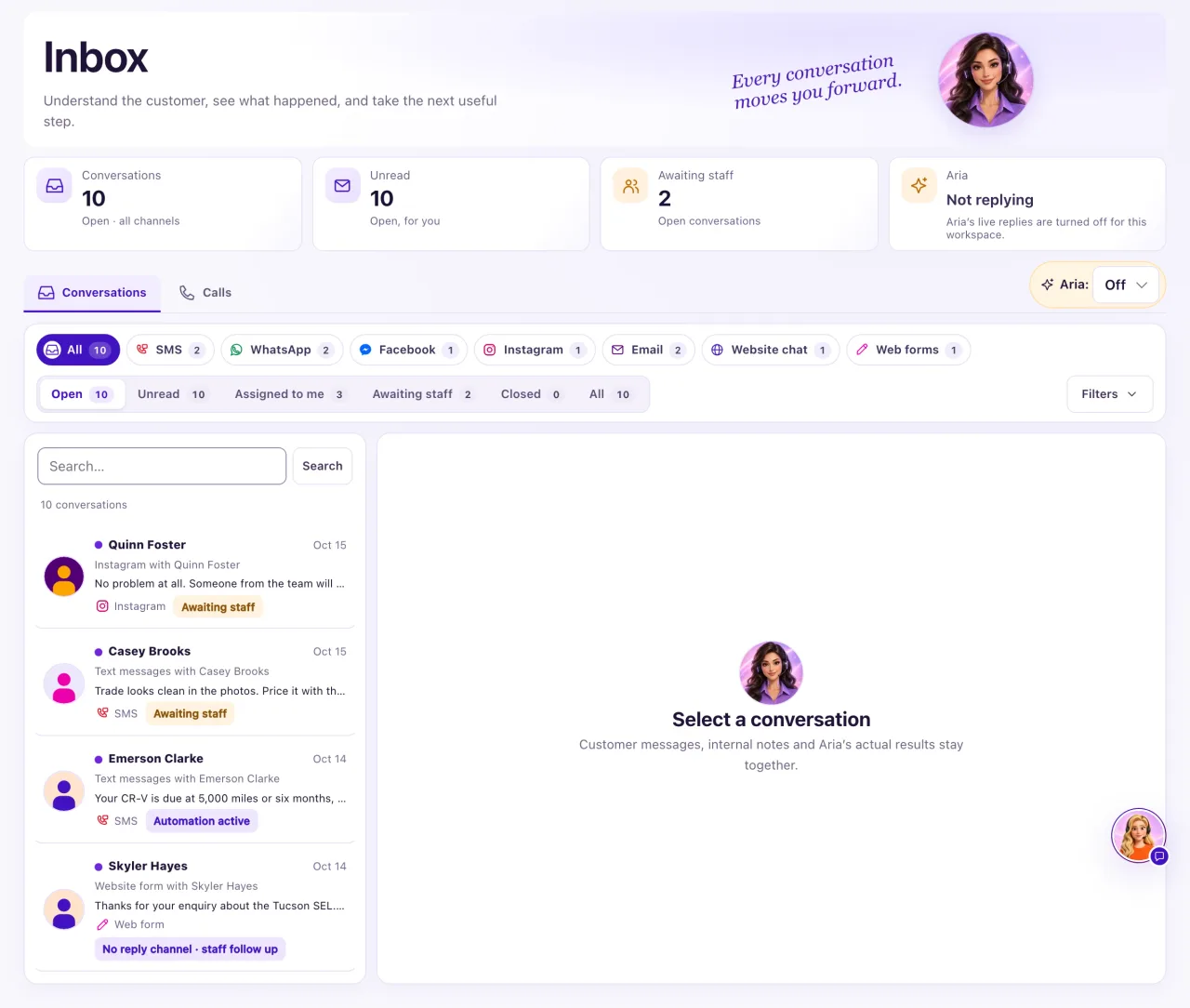
The Inbox is where your dealership works every real customer conversation: texts, WhatsApp, Facebook Messenger, Instagram, email, website chat and website forms, in one list. Aria's replies and your team's replies sit in the same thread, so everyone sees the whole story.
Open it from Inbox in the sidebar. It opens on the Conversations tab and remembers the filters and conversation you had open last time.
Social lead pool. Messenger, Instagram and WhatsApp conversations nobody is assigned to wait in the Social lead pool bar at the top of the list ("N waiting"). Take lead claims one for you, first come first served: it is assigned to you and becomes private to you, and anyone else who tries sees "Already taken by name." The Owner, and Staff with Inbox change access and Sales department access, can take leads.
On a computer the Inbox opens the newest conversation for your filters. In a text reply, Insert SMS template adds one of your saved texts from Campaigns → SMS.
Owners can see and change everything. A Staff member sees the Inbox only if their Owner gave them Inbox access in Settings → Team & roles; with View only, every change control is hidden and the page says "View only. Ask your Owner for access."
How to use it
- Select Inbox in the sidebar.
- Pick a channel chip (All, SMS, WhatsApp, Facebook, Instagram, Email, Website chat or Web forms) to narrow the list. A chip with 0 conversations is faded.
- Pick a state tab: Open (the default), Unread, Assigned to me, Awaiting staff, Closed or All.
- To narrow further, select Filters and choose a Handling (for example Awaiting staff or Taken over) or an Assigned option.
- To find one customer, type their name in Search… and select Search. Search matches the customer's name and the conversation title, not the words inside messages.
- To keep a set of filters, open Filters and select Save view, then give it a name. Saved views are private to you; you can keep up to 20.
- Select a conversation row to open it. Opening it marks it as read for you only. On a computer, the Inbox title and the four tiles hide while a conversation is open, and the channel chips become one Channel menu beside the state tabs, so the conversation gets the room. They come back when no conversation is open.
- Use Previous and Next under the list to move between pages of 30 conversations.
What the data means
The four tiles at the top always count every channel, whichever chip is selected. They show while no conversation is open:
| Tile | What it shows |
|---|---|
| Conversations | How many conversations match your search and the state tab you have open |
| Unread | Open conversations with a customer message you have not read yet. Each person has their own unread count |
| Awaiting staff | Open conversations waiting for a person: Aria passed them to the team, or the customer asked for someone |
| Aria | Ready when Aria can reply, or Not replying with the first reason. When she is not replying, select the tile to open the screen that fixes it |
Each row shows the customer, the time of the last message, a preview starting with Aria:, Staff: or Note: when one of them wrote last, the channel, and a badge: Automation active (Aria is handling it), Awaiting staff (waiting for a person), Taken over (a team member is handling it and Aria does not answer), Paused (Aria is stopped in this conversation), Closed, or Reopened (a closed conversation the customer wrote to again).
No reply channel · staff follow up marks a website form entry: there is no channel to reply on, so call or email the customer.
Possible issues and fixes
The Inbox says "No channels connected"
Symptom: The Inbox shows only a card saying No channels connected, or "No customer conversations yet".
Why: No channel is connected to the workspace yet, or nobody has written in since it was connected.
Fix: An Owner selects Review connections (or opens Settings → Connections) and connects a texting number, Facebook Page, Instagram account, WhatsApp number, mailbox or website chat.
How to check: Send a message to your own number, Page or mailbox from a personal account. The conversation appears in the Inbox within moments.
A customer wrote but I can't find the conversation
Symptom: A customer says they messaged you, but the conversation is not in the list.
Why: The list only shows what the selected chip, state tab, filters and search allow. A first message that is only a greeting, a wrong number or an automated sender waits in Intake for an Owner, and customers who opted out are moved out of the Inbox.
Fix:
- Select the All chip and the All tab, and open Filters to check that no other filter is on.
- Search by the customer's name, not by words from their message.
- Ask an Owner to check Intake.
How to check: The conversation shows in the list and its row opens the thread.
The Aria tile says "Not replying"
Symptom: The Aria tile is amber and says Not replying with a reason.
Why: Something Aria needs is not set up, for example her replies are switched off or the monthly AI limit was reached.
Fix: Select the tile. It opens the screen that fixes the first reason. See "Why didn't Aria reply?" for every reason.
How to check: The tile shows Ready ("AI replies available") within about 15 seconds.
My numbers don't match my colleague's
Symptom: Your Unread or Conversations count is different from a colleague's.
Why: Unread is personal: a colleague reading a conversation does not mark it read for you. Conversations follows the state tab and search you have open.
Fix: Nothing is wrong. Choose the same tab and clear the search to compare like for like.
How to check: With the same tab and no search, your Conversations counts match.
