
What it is
Aria can include recorded vehicle pictures inside Gmail and Outlook email replies. Sent photo means the provider accepted the email containing that image; it does not prove the customer opened it or enabled remote images. An uncertain or failed send is never counted as a sent photo.
The Gmail and Outlook mail tiles connect a mailbox your dealership already uses. QualiFlow reads customer email from it into the Inbox, and replies (yours and Aria's) go out from that address. Customers only ever get email from your dealership's own address.
QualiFlow reads only new email, from the moment you connect. Nothing already in the mailbox is imported unless your plan includes Sync past emails and you choose to. It also brings in only real emails from people: it skips QualiFlow's own alerts and sign-in codes, security alerts and one-time codes, no-reply senders, automatic messages, newsletters and mailing lists, and Gmail's Promotions, Social, Updates, Forums, Spam and Trash. Skipped emails never become conversations, alerts or Aria replies. Emails from a lead source you set up are still brought in.
You need the Google or Microsoft account that owns the mailbox. Signing in to QualiFlow with Google or Microsoft does not connect a mailbox. Only an Owner can connect.
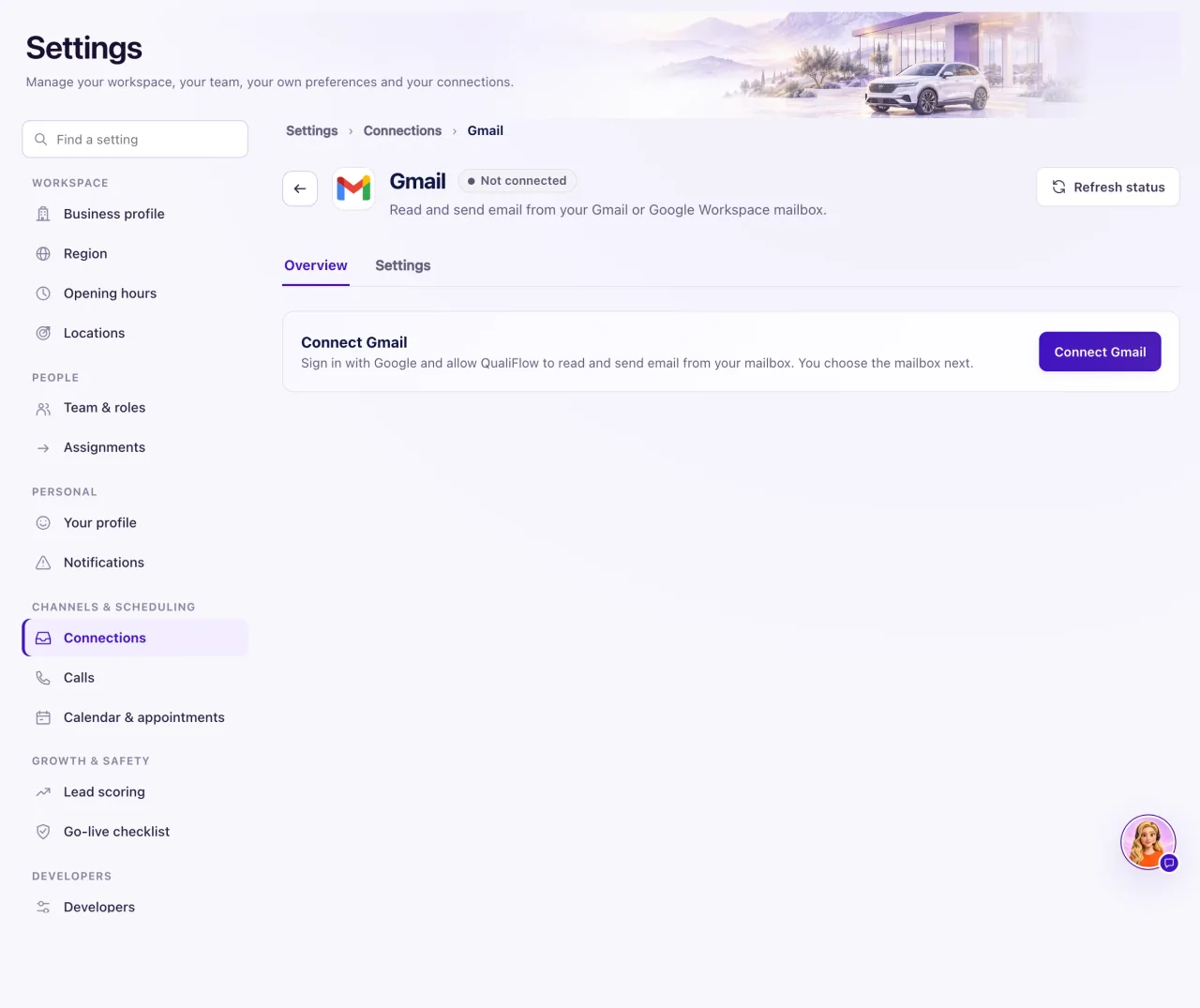
How to use it
- Go to Settings → Connections and select the Gmail or Outlook mail tile.
- Select Connect Gmail (or Connect Outlook mail). Sign in with Google or Microsoft and allow every permission QualiFlow asks for.
- You come back to Connections and the tile reopens.
- QualiFlow uses the account you just signed in with. It never asks which email: the page shows Successfully connected, a green Connected with your address, and Reconnect and Disconnect. Mail sync settings are under Details.
- QualiFlow starts reading new emails from now on and turns on Live updates by itself. Under Mailbox sync you can select Sync new mail to check for new email at once.
- Optional, Ultra Flow, Scale Flow and Dealer Flow only: under Sync past emails, choose From (up to 90 days back) and, for Gmail, To (optional). Select Preview to see how many emails would be imported or skipped and a few examples, then Import N emails. Nothing is imported before you confirm. On Smart Flow this section shows a lock card ("Sync past emails — available on Ultra Flow, Scale Flow and Dealer Flow. New emails always sync.") with See plans.
- To put booked appointments on a calendar too, open Google Calendar or Outlook Calendar and connect it the same way. QualiFlow uses your main calendar; to use another one, open Details and select Use a different calendar (optional).
- Check the send status in Inbox. Aria email uses a greeting, paragraphs or lists, one closing and your dealership signature, in the existing thread. Provider acceptance does not prove delivery; Microsoft 365 can require manual reconciliation.
Aria’s email layout
Aria’s outgoing emails use a greeting, readable paragraphs or lists, one closing and your dealership’s signature. A reply stays in the customer’s existing email thread. A provider accepting a send is not proof the customer received it; check the delivery state in Inbox.
What the data means
Mailbox sync shows how QualiFlow is reading the mailbox: Not started ("Syncing new emails from now"), Syncing ("Syncing new emails from the time this mailbox was connected"), Reconnected ("Reconnected — syncing new emails from now": after you reconnect, old email is not imported again) or Needs attention ("QualiFlow lost its place in this mailbox"). It offers Sync new mail (or Continue sync when more is waiting), Continue from now when QualiFlow lost its place, and Check status. After a sync a line such as "3 new emails · 5 skipped (automatic or private emails)" appears; Why emails were skipped lists each reason with its count.
Live updates keeps the mailbox current. Either Google or Microsoft tells QualiFlow about new mail straight away, or QualiFlow checks for new mail every few minutes (every 5 minutes unless set otherwise; the panel says which). You can turn it Off or On.
Access is renewed automatically before it runs out. If it can't be, the tile shows Needs reconnect or Renew access. The mailbox and the calendar have separate tiles and connect separately.
Possible issues and fixes
The tile stays "Authorization pending"
Symptom: You signed in, but the tile still reads Authorization pending, or Find my mailboxes finds nothing to choose.
Why: A permission was unticked or the sign-in was cancelled, or the sign-in went stale (back button, a second tab, or too long).
Fix: Select Reconnect (or Connect Gmail again), sign in with the account that owns the mailbox and keep every permission ticked. QualiFlow then uses that mailbox by itself.
How to check: The tile reads Connected and Your mailbox shows the address you chose.
"Finish disconnecting first"
Symptom: Connecting stops because QualiFlow couldn't confirm that Google removed an earlier permission.
Why: An earlier Gmail connection is still being removed on Google's side.
Fix: Select Try revocation again, then connect.
How to check: The connect button works and you can choose a mailbox.
The same error comes back after a retry
Symptom: You see "The provider asset list could not be verified" or the same message twice.
Why: Something on QualiFlow's side may not be ready for Google or Microsoft.
Fix: Stop retrying. Create a ticket in Support with the category Connections and channels: name the tile, quote the message, give the time and the address you signed in with. Never include a password.
How to check: Support replies in the ticket; after the fix, the tile reads Connected.
No new emails arrive in the Inbox
Symptom: A customer wrote to the mailbox, but no conversation appears.
Why: The email looked automatic or private (no-reply sender, newsletter header, security or sign-in code, Gmail Promotions/Social/Updates/Forums, or QualiFlow's own address) and was skipped on purpose; or the mailbox needs reconnecting; or Live updates is off.
Fix: Open the tile and select Check status, then Sync new mail. Open Why emails were skipped to see what was left out. If the tile shows Needs reconnect, reconnect. Ask the customer to write from a personal address rather than a no-reply one.
How to check: The run line shows "1 new email" and the conversation appears in the Inbox.
"QualiFlow lost its place in this mailbox"
Symptom: Mailbox sync shows Needs attention.
Why: Google or Microsoft no longer had the history QualiFlow needed, usually after a long pause.
Fix: Select Continue from now (any plan). On Ultra, Scale or Dealer Flow you can also bring in the emails from the gap with Sync past emails.
How to check: The status reads Syncing again.
