
What it is
My Work is where everything that needs a person lives. It has four tabs: Tasks (the first tab), Needs attention, Commitments and Completed. It opens on the tab you used last in this browser, and links from the Overview, the notification bell and Nora open the right tab.
The Tasks tab is your team's to-do list of open tasks. Once a task is closed (Completed, Not completed or Cancelled) it leaves Tasks and moves to Completed. Each task has a title, an owner, a due time and links to the records it is about. People create tasks with Create task; QualiFlow also creates them, for example when a customer asks to be followed up or a journey step goes to staff. The task's Why line says where it came from.
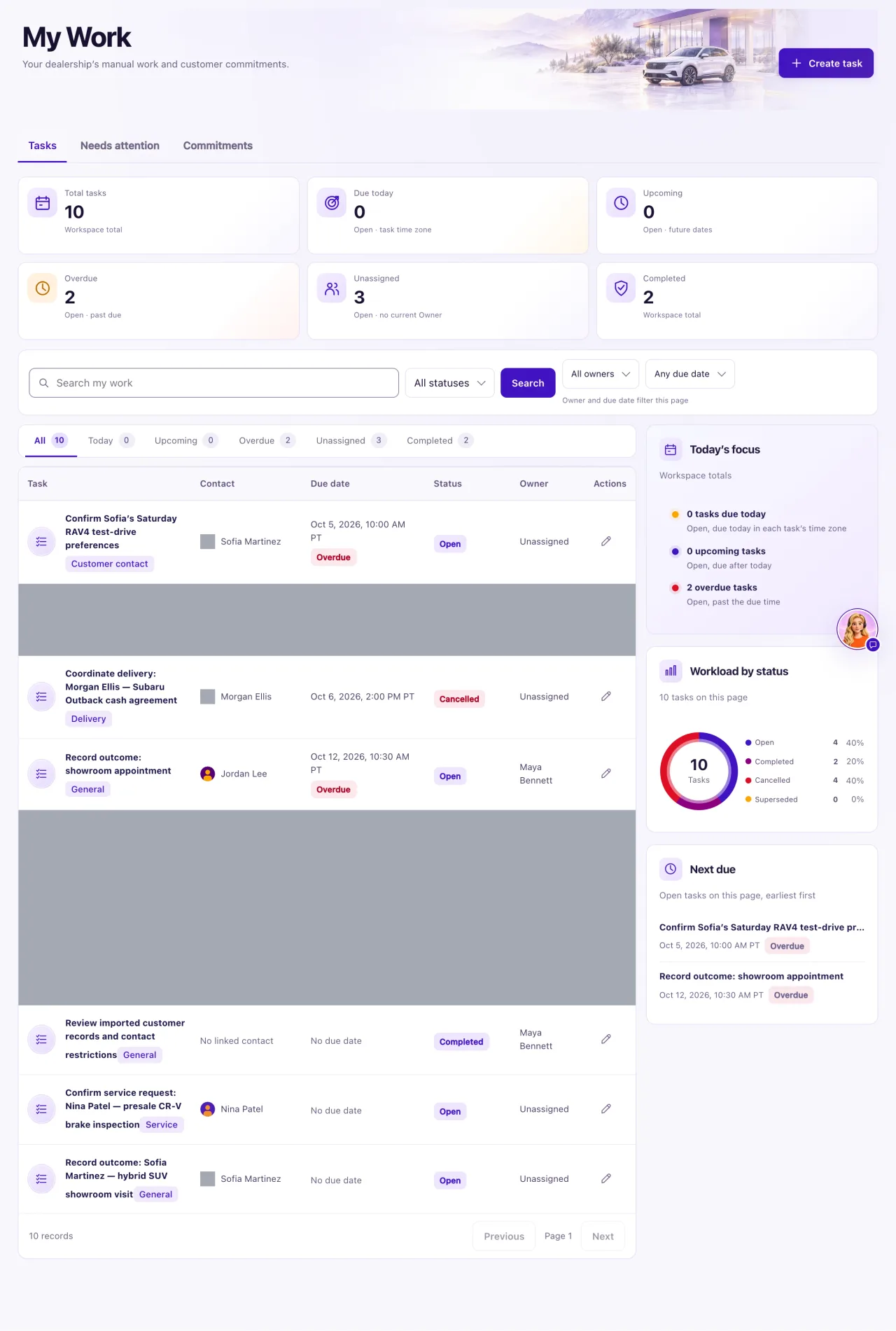
The Tasks tab, Create task and completing tasks are for Owners. A Staff member whose Owner gave them My Work view sees Needs attention and Completed.
How to use it
- Select My Work in the sidebar, then the Tasks tab.
- Choose a view: All, Today, Upcoming, Overdue or Unassigned. Each shows its count. Every view, All included, shows open tasks only.
- To find a task, type in Search my work and select Search.
- To add one, select Create task. Fill in Title, Work type, Priority, Due date and time and Timezone, choose a Responsible owner, and link a contact, opportunity, vehicle, visit, service case or ownership record if it helps.
- Select a task to open it. A task about a customer opens that customer's profile with the task shown on top, so you can call, text or book from there. Open tasks show Complete task and Edit task (and Reschedule in the task panel).
- When the work is done, select Complete task. It asks what happened, by kind of task, and nothing is picked for you: a call (Reached — interested, Reached — not interested, Left voicemail, No answer, Wrong number, then the Next step); a showroom appointment, visit or test drive (Came, No-show, Rescheduled, Cancelled; after Came, Bought, Interested — follow up or Not interested and the vehicle); a quote or documents (Sent, Customer replied, Not needed); a service task (Booked service, Not now, No answer); a delivery (Delivered, New date, Couldn't deliver); anything else (Done, Couldn't complete, No longer needed).
- Add a one-line note if it helps and select Save (or press Enter). The answer is saved on the task as one line, for example "Came in · Interested · 2025 RAV4 · follow up Oct 28", and shows on Completed and in the customer's Activity. Aria reads it too, so she knows what happened and when the team will follow up; it is never sent to the customer.
- After Save, QualiFlow does the next step for you: Follow up on a date adds a follow-up task at 10 AM that day (for the same person), Send info adds a task for today, Book a visit and Booked service open Book appointment for the customer, and Rescheduled opens the appointment so you can pick the new time. When the task is linked to a booked appointment, Came or No-show is recorded on the visit too. The Lead status only moves forward: Reached sets Contacted, Came sets Appointment set and Bought sets Won; it never moves back, never leaves Won or Lost, and Not interested never sets Lost.
- To move a task later, select Reschedule and change the due time. If the task came from another record, Reschedule opens that record instead.
- To give it to someone else, select Edit task and change Responsible owner. If a task is no longer needed, select Complete task and the choice that says so (No longer needed, Not needed or Cancelled).
- To see closed tasks, open the Completed tab. Each task shows how it ended (Completed, Not completed or Cancelled), the note, who closed it and when, and After due time when it was closed late. Filter by date range (Last 7 days, Last 30 days or Last 90 days), outcome and, if you have See team performance, person.
- At the top of Completed, the performance summary shows one row per person: Completed, Not completed, Cancelled, On time, Avg. time to close and Overdue open. Select a person's name to show only their tasks; select it again to show everyone.
What the data means
| Card or status | Meaning |
|---|---|
| Due today | Open tasks due today, in each task's own time zone |
| Upcoming | Open tasks due after today |
| Overdue | Open tasks past their due time |
| Unassigned | Open tasks with no current Owner |
| Superseded | Closed by QualiFlow because its source no longer needs it. Nothing to do |
On the Completed tab, Completed, Not completed and Cancelled count tasks closed that way in the date range. On time is the share of Completed and Not completed tasks with a due time that were closed by it ("—" if none). Avg. time to close runs from creating the task to closing it. Overdue open counts open tasks past due right now, whatever the date range. A task counts for the person it is assigned to; a task with no owner counts for whoever closed it.
A follow-up a customer asked for shows who acts (Aria will send or Team to contact) and where it stands: Time not set, Scheduled for day, time, Sending, Sent, Delivered, Didn't go out, Due now, Done or Cancelled. Sent means the provider accepted Aria's message; Delivered means delivery was confirmed. Neither means the customer read it.
Saving or completing a task never sends a message or places a call. There is no snooze: use Reschedule. A closed task keeps its status, so create a new task for further work.
Possible issues and fixes
I can't save a task as completed
Symptom: Save in Complete task stays greyed out, or it says "Choose the follow-up date."
Why: Save waits until you choose what happened. Couldn't complete, No longer needed and Couldn't deliver need a short note, and Follow up on a date needs a date that hasn't passed. In Edit task, a call, a message or Other needs evidence.
Fix: Choose what happened, add the note or the follow-up date, then select Save.
How to check: The task shows Completed and leaves the Overdue view.
Aria said she would follow up, but nothing was sent
Symptom: The customer didn't hear back after Aria promised a follow-up.
Why: Didn't go out means Aria's message failed and your team was asked to contact the customer. Time not set means the customer never gave a time.
Fix: Contact the customer yourself, then select Complete task with what happened.
How to check: The task shows Done and the follow-up status line updates.
A Staff member only sees Needs attention and Completed
Symptom: A teammate with My Work access has no Tasks or Commitments tab.
Why: For Staff, the task list, Create task and Commitments are Owner-only. Staff with My Work view read Needs attention for their locations and Completed. On Completed, people with See team performance see the whole team's tasks, one row per person and the Person filter; everyone else sees only their own. Owners always have it; it is on by default for manager roles and off for everyone else. The Owner switches it per person under Settings → Team & roles → (person) → My Work.
Fix: An Owner creates and completes tasks for now.
How to check: The Staff page header reads "What needs your attention in the locations you work in."
Overdue tasks on the Overview doesn't match Overdue in Needs attention
Symptom: The two Overdue numbers differ.
Why: The Overview counts open tasks past due. Needs attention counts every overdue item in its queue: customer requests, approvals and tasks.
Fix: Nothing is wrong. Use the Tasks tab's Overdue view for tasks only.
How to check: The Tasks tab's Overdue view lists the overdue tasks the Overview counts.
