
What it is
Aria answers incoming calls on your connected numbers, around the clock. The Calls page has four tabs: History, Incoming (the calls Aria answers), Dialer and Scheduled.
Each call shows what happened: answered, transferred, voicemail or missed, and whether it has a transcript and a recording. When something is missing, the call itself says why.
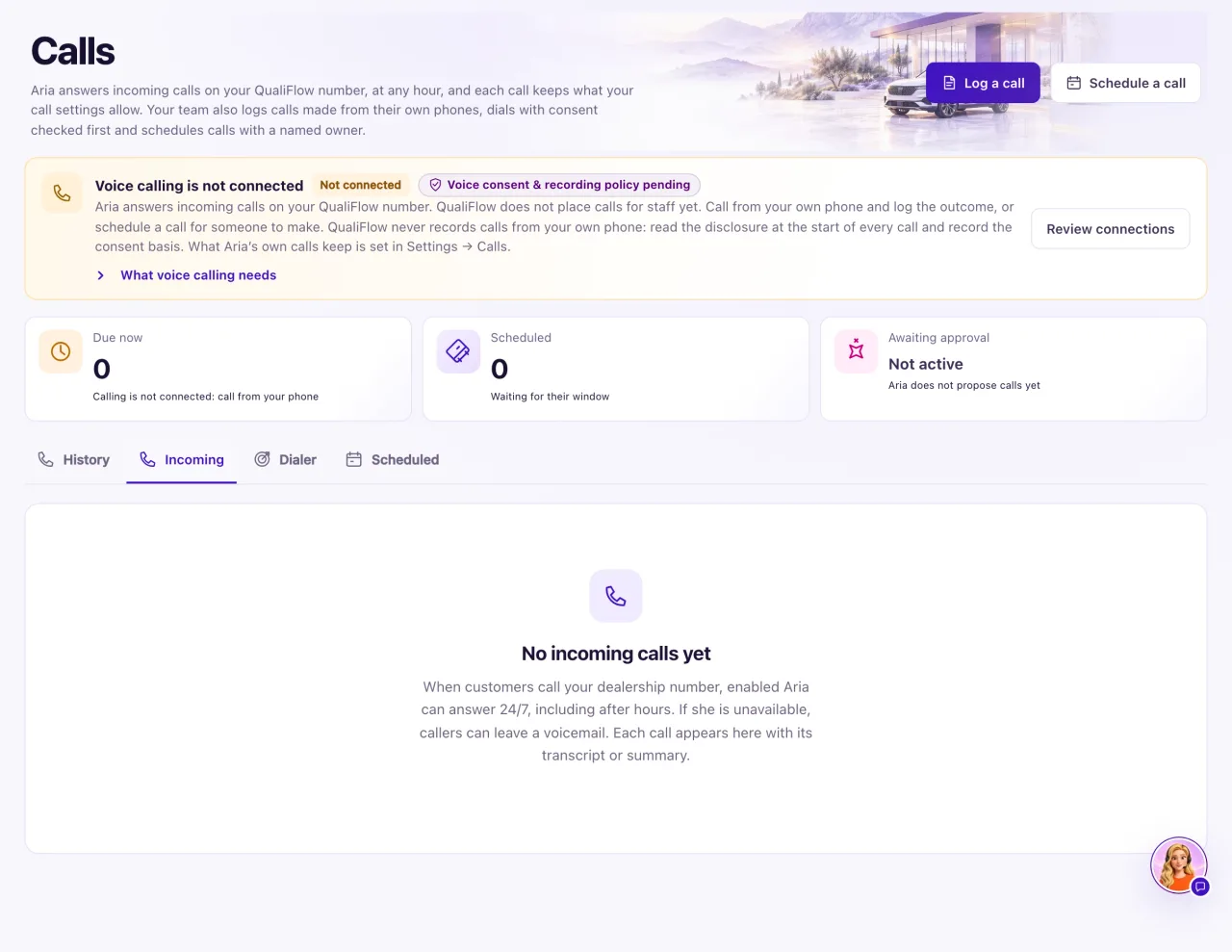
How to use it
- Open Calls and select Incoming.
- Find the call by its time and caller, and open it.
- Read its outcome and the recording and transcript labels.
- To change what is kept for future calls, an Owner opens Settings → Calls and chooses the Call transcripts option (Off, Summary only or Transcript and summary) and the recording option.
- To call a customer, use your own phone, then log the call on Calls so it is recorded.
What the data means
The recording label on a call is one of Recorded, Recording, Recording being saved, Recording save failed, Not recorded, Recording deleted or No recording. Caller asked to stop means the caller asked not to be recorded; the recording is then deleted.
Possible issues and fixes
A call went to voicemail
Symptom: A customer called and left a voicemail instead of talking to Aria.
Why: Aria's mode was Off, the number's agent wasn't active, phone answering is off for the number, or a transfer to the store wasn't answered. Opening hours are not a reason: when Aria is on, she answers 24 hours a day. She never transfers a caller to a closed store.
Fix: An Owner sets the Aria: switch to Ask first or Autopilot, and checks the number's agent in Aria Lab and the number in Settings → Connections → SMS & calls.
How to check: Call your number from another phone. Aria answers.
A call has no transcript
Symptom: The call shows a summary but no transcript, or neither.
Why: Call transcripts was set to Off or Summary only for that call, or the caller asked to stop.
Fix: An Owner chooses Transcript and summary in Settings → Calls. It applies to calls from then on, not to earlier ones.
How to check: The next answered call has a transcript.
A call has no recording
Symptom: The call shows Not recorded, No recording, Recording deleted or Recording save failed.
Why: Recording was off, the caller asked to stop (the recording is then deleted), the recording couldn't be started or saved, it is still being saved, or the contact was erased.
Fix: An Owner turns recording on in Settings → Calls. Wait a few minutes if it says Recording being saved.
How to check: The next answered call shows Recorded.
Aria didn't call the customer
Symptom: You expected Aria to phone a customer, but no call was made.
Why: Placing calls from QualiFlow isn't switched on, so Aria doesn't make outgoing calls. A call she planned becomes a task for your team in My Work.
Fix: Call the customer from your own phone, then log the call on Calls.
How to check: The call shows in the contact's history.
A missed call isn't in the Inbox
Symptom: A customer says they called, but there is nothing in the Inbox.
Why: Calls are not Inbox conversations. Missed calls and voicemails appear on Calls → Incoming.
Fix: Open Calls → Incoming and call the customer back. If no call shows there either, see the problems with numbers in "When to contact QualiFlow support".
How to check: The call is listed on Incoming.
