
What it is
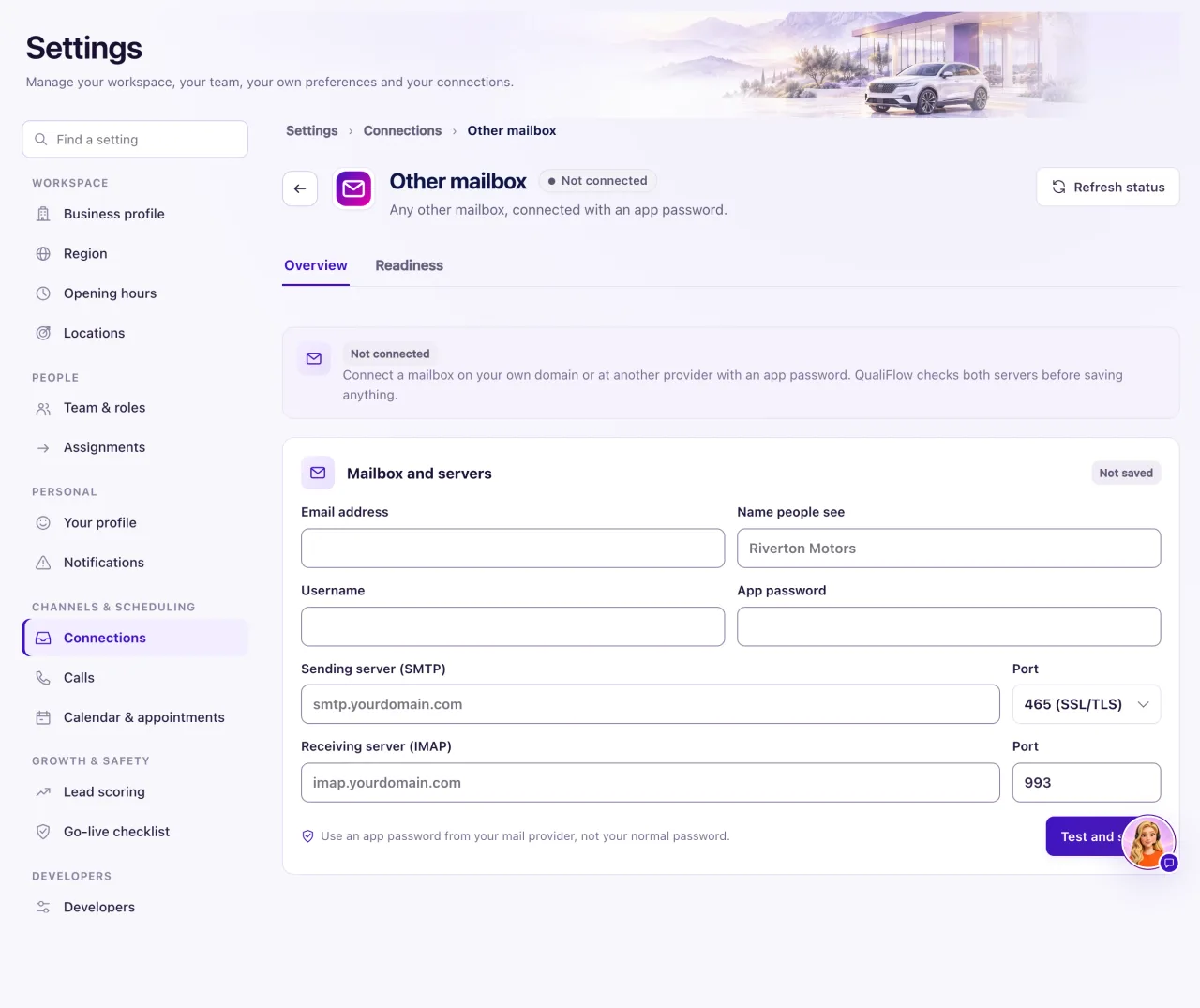
Other mailbox connects any mailbox that isn't Gmail or Outlook, such as one from your web host, using its mail servers and an app password from your mail provider. QualiFlow checks it for new mail, and your Inbox replies (yours and Aria's) go out from it as plain text. Campaign email is not sent from it: campaigns need Gmail, Outlook mail or an email domain.
It is in the Email group on Settings → Connections, with an Overview and a Readiness tab. It is Owner-only.
How to use it
- Create an app password in your mail provider's account settings. Don't use your normal password.
- Go to Settings → Connections and select the Other mailbox tile.
- Enter the Email address, Name people see, Username and App password.
- Enter the Sending server (SMTP) with port 465 (SSL/TLS) or 587 (STARTTLS).
- Enter the Receiving server (IMAP); it uses port 993.
- Select Test and save. It saves only if both servers pass.
- Select Check for new mail now to bring in mail straight away.
What the data means
The status reads Connected, Paused, Needs the app password, Disconnected or Not connected. After a test, each server reads Signed in or the reason it failed.
QualiFlow checks for new mail every 2 minutes by default. Disconnect deletes the saved password and stops checking; email still waiting to send from this mailbox is not sent.
Possible issues and fixes
"This address is hosted by Google"
Symptom: Test and save says to connect it on the Gmail tile instead (or the Outlook mail tile for Microsoft).
Why: Google and Microsoft mailboxes connect through their own tiles.
Fix: Use the Gmail or Outlook mail tile.
How to check: That tile reads Connected.
A server test fails
Symptom: A server shows Server name not found, Couldn't connect, Secure connection failed, No STARTTLS on port 587 or No answer in time.
Why: The server name or port is wrong, the server's certificate doesn't match the name, or it was slow to answer.
Fix: Check the server name for typos and the port. If port 587 fails, try 465. Ask your mail provider for the exact settings, then Test and save again.
How to check: Both servers read Signed in.
"Username or app password rejected"
Symptom: The test, or a later check, says the password was rejected, or the status reads Needs the app password.
Why: The username is wrong, a normal password was used, or the app password was revoked.
Fix: Create a new app password at your mail provider, enter it and select Test and save.
How to check: The status reads Connected and Check for new mail now brings in a test email.
"The Owner who connected this mailbox no longer has access"
Symptom: The mailbox stopped and shows this message.
Why: The Owner who connected it left the workspace or lost the Owner role.
Fix: A current Owner connects the mailbox again.
How to check: The status reads Connected.
