
What it is
US carriers require your own business to be registered before your numbers can text customers. Business registration (in Settings → Connections → SMS & calls) collects your business details. QualiFlow files them with its carrier partner under your workspace's own account, never under another business's registration.
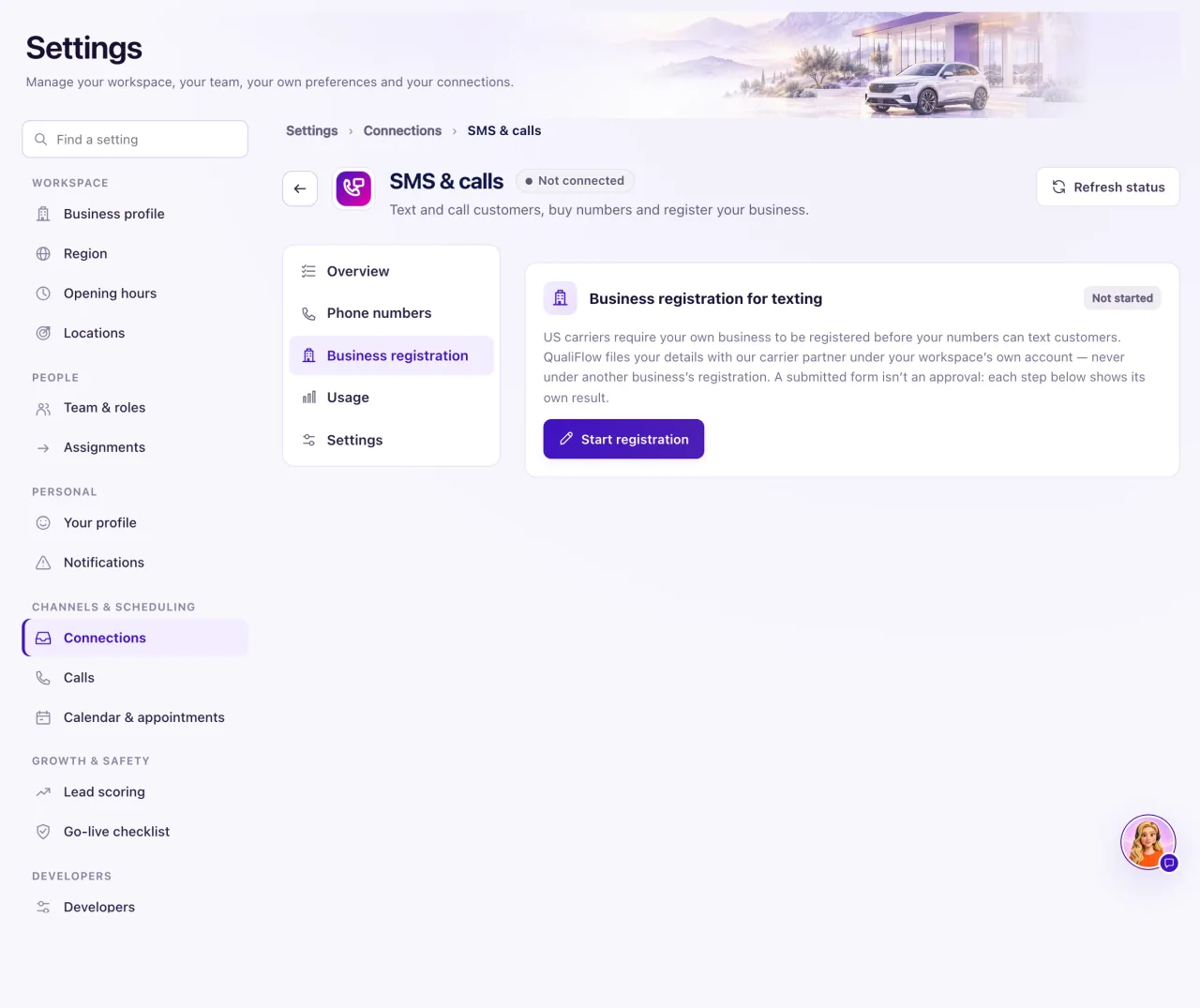
Until it is approved, a number's card says: "Texting starts after your business is approved by US carriers. Calls and incoming texts work now." Approval usually takes a few days and can take up to 3 weeks, counted from when the details reach the carriers.
A submitted form isn't an approval, and registration never gives permission to text anyone: customers must still agree to receive texts.
QualiFlow can file it for you. Instead of filling in the form, ask QualiFlow support. QualiFlow prepares your details and either emails the Owner to confirm them, or submits them to the carriers on your behalf. You then see "Filed by QualiFlow on your behalf." and every carrier step with its status, exactly as if you had submitted it. If your business was registered directly with the carrier before, QualiFlow can link that registration instead.
Already registered directly with the carrier? If a number already has an approved texting campaign and brand on the carrier side (or it's a toll-free number with an approved toll-free verification), ask QualiFlow support. QualiFlow checks the carrier for that one number and, only when the carrier shows it approved, the number says Registered (verified with the carrier) and can text without this form. If the carrier is still reviewing it, the number says Waiting for carrier approval, and texting starts by itself once the carrier approves. Other numbers in your workspace still need business registration. If the carrier later shows the campaign isn't approved, texting from that number is held and the number says so.
How to use it
- Open Settings → Connections → SMS & calls and choose Business registration, or select the button on a number's card (Add business details, Finish business details, Review business details or Fix business details).
- Select Start registration (or Review business details).
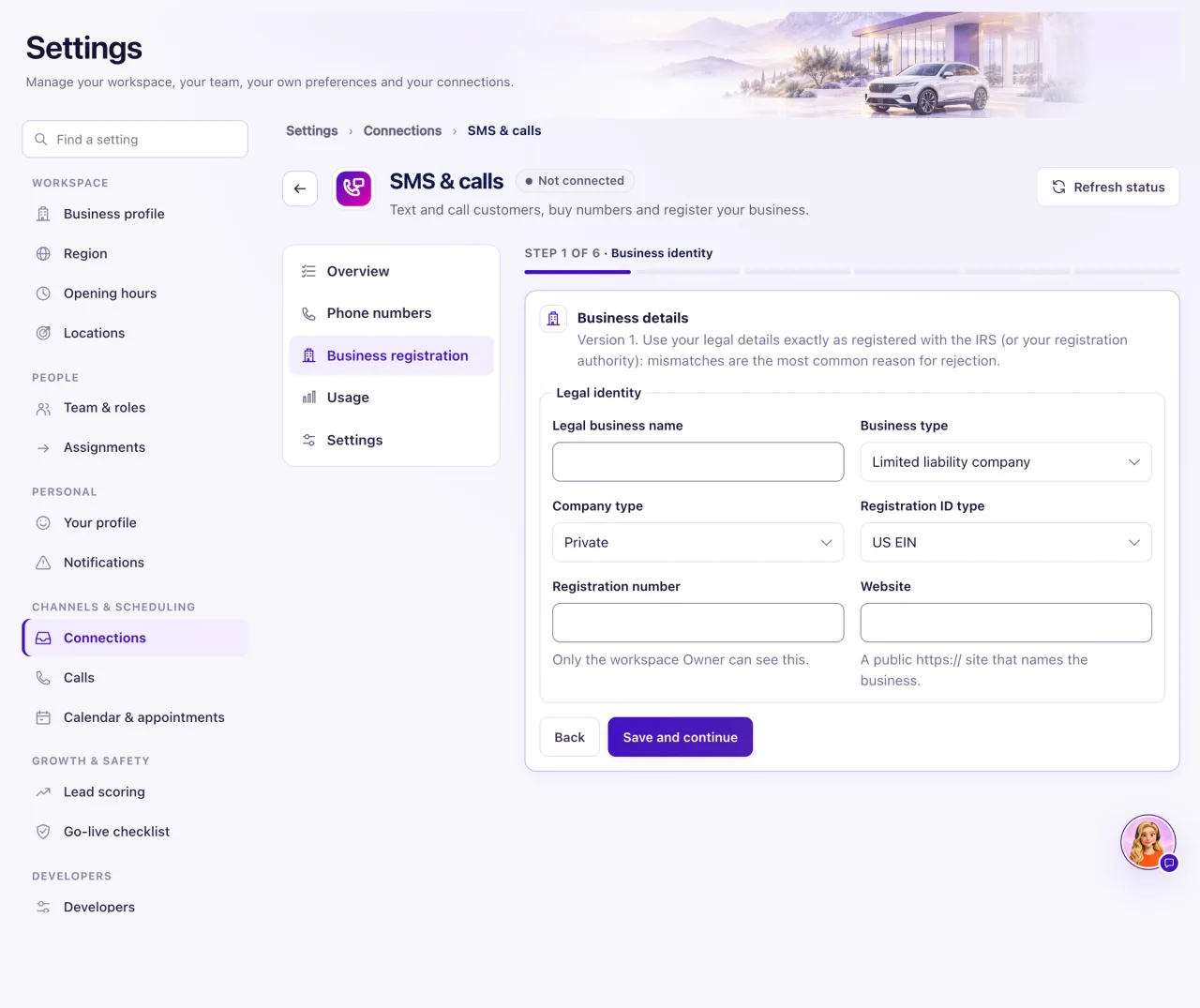
- Business identity: enter your Legal business name exactly as registered with the IRS or your registration authority, the Business type, Company type, Registration ID type, Registration number and a public https:// Website that names the business.
- Business address: the registered address, in the US or Canada.
- Authorized representative: someone who can speak for the business. Enter the phone in +15551234567 form.
- Messages and consent: choose the Messaging purpose and Expected texts per month. Describe What the messages are for and How customers agree to texts in at least 40 characters each. Add at least one https:// consent evidence link and at least 2 sample messages of 20 characters or more.
- Opt-out, help and policies: Reply to STOP must mention STOP; Reply to HELP must answer HELP with how to reach you. Add the Privacy policy link and Terms link (https://).
- Select Save and continue as you go. A draft needs only a legal business name of at least two characters; field types, allowed choices and size limits still apply. Nothing is filed and texting is not turned on until you submit and the carrier approves.
- On Review and submit, select Submit for registration.
- Follow each carrier step's row on Business registration until every one says Approved.
- If a verified number isn't in the registration yet, select Register this number for SMS on Overview under Messaging readiness.
What the data means
For a local number the carrier steps are Business profile, Brand and Campaign, then Number registration for each number. A toll-free number has one step, Toll-free verification. You may also see A2P messaging profile and Messaging Service, which QualiFlow files for you. Texting turns on for a number only when every step for it is Approved.
| Status | What to do |
|---|---|
| Waiting to be submitted | Read the line under the row; a waiting step needs nothing. |
| Submitting | Wait a few minutes, then refresh. |
| Submitted — waiting for review | Wait. The carriers haven't started. |
| In review | Wait. |
| Approved | Nothing. This step is done. |
| Needs changes | Read the reasons, correct your details, submit again. |
| Couldn’t be submitted | Read the reasons, correct your details, submit again. |
| Suspended | Read the reasons; create a ticket if support has to act. |
| Checking with the carrier | Wait; QualiFlow checks again by itself. |
| Withdrawn | Submit your business details again to restart. |
The registration card shows Not started, Draft — not submitted, In review with the carriers, Needs changes or Business registered. Business registered appears only after the carriers approve every business step, or when a registration linked from the carrier reads back as approved.
Under the title, one line gives the next step, for example "Next: get a phone number. Your first number is free." On a number's card the title follows it: Add your business details to start texting, Finish your business details to start texting, Texting is waiting for carrier approval or Texting needs a change to your business details.
Possible issues and fixes
Texts show "Not sent" until approval
Symptom: Texts you or Aria send from your number show Not sent: "texting starts after your business is approved by US carriers." The customer didn't receive them.
Why: Your registration isn't submitted, is in review, or needs changes.
Fix: Submit or fix your business details, and wait for approval. Then send the texts again; a refused text isn't sent later by itself.
How to check: The number's SMS row on Overview reads Ready and its headline says "SMS ready."
A step says "Needs changes"
Symptom: A row shows Needs changes, Couldn’t be submitted or Suspended, and the number card says Texting needs a change to your business details.
Why: The carriers asked for a change. The reasons are listed under the row. Details that don't match your IRS records are the most common cause.
Fix: Select Review business details, correct what the reasons name and select Submit for registration again. If a reason says to contact QualiFlow support, create a ticket.
How to check: The row moves to Submitted — waiting for review or In review.
The form won't save or submit
Symptom: You see "Check the highlighted fields and try again." with a list of messages, or "These details changed elsewhere…".
Why: A draft only stops for a size limit or a choice that isn't allowed; submitting also needs every field complete and valid (for example "Use a full https:// address."). Or someone else saved newer details.
Fix: Select each message to jump to its field and fix it. For "changed elsewhere", reload, check what is saved and make your change again.
How to check: You see "Draft saved. Nothing is filed until you submit it." or "Business details submitted. Each registration step shows its own result below."
A row says it is waiting for QualiFlow
Symptom: A line under a row names QualiFlow, such as "Waiting for QualiFlow to set up your workspace’s phone account."
Why: QualiFlow has to finish its own setup first. You can still prepare and submit your details.
Fix: Create a ticket in Support if it doesn't change within a few days.
How to check: The row moves to Submitted — waiting for review.
