
What it is
Get Aria answering your customers ("Aria setup · 3 steps") connects a channel, hands its conversations to Aria, and approves how she replies.
Open it from Set up Aria now · 3 steps after workspace setup, Set up Aria (3 steps) or Manage Aria setup on the Overview's Aria card, or Quick setup in Aria Lab. Owners make changes; anyone else sees the status only.
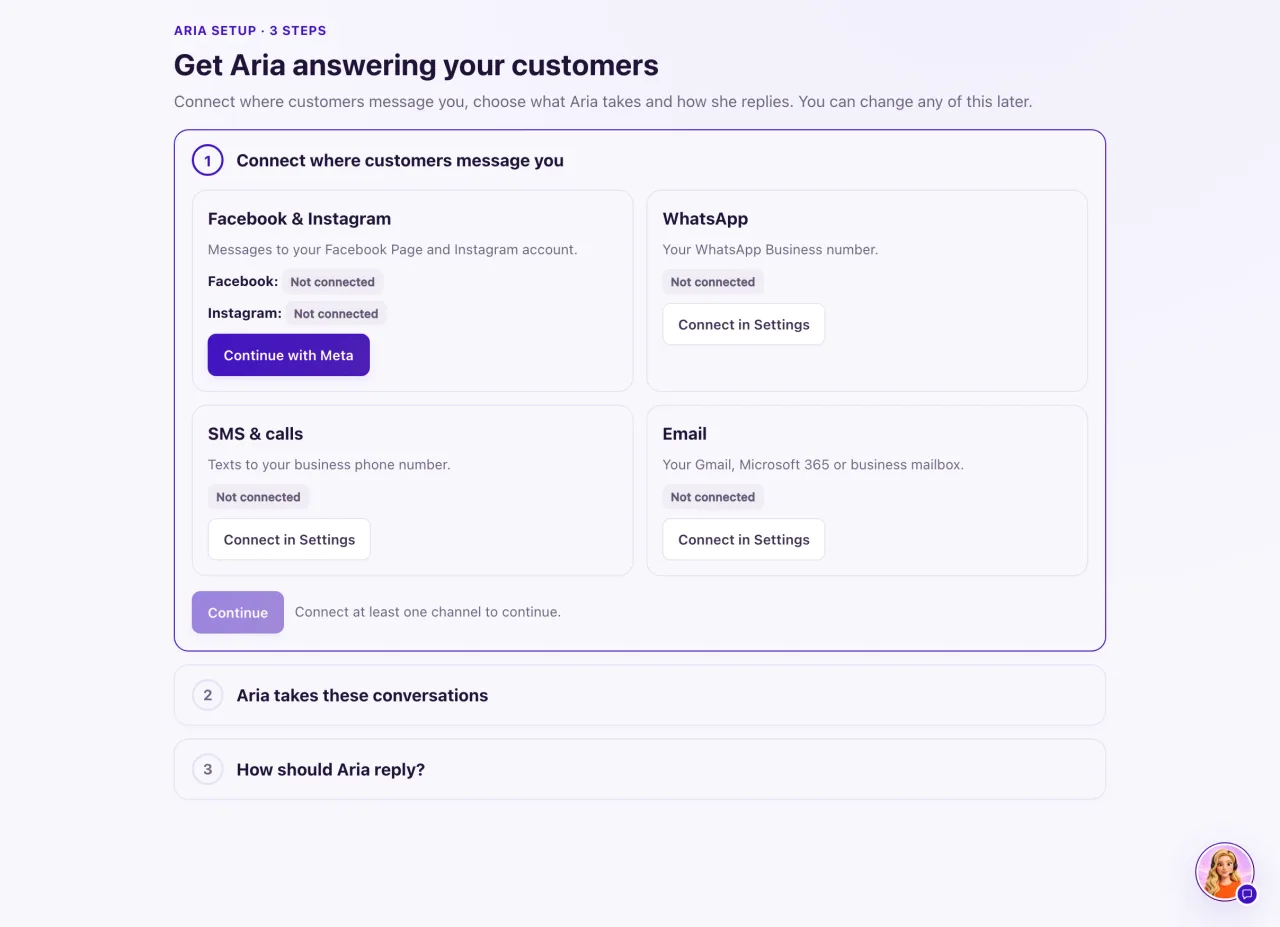
How to use it
- Connect where customers message you. Select Continue with Meta for Facebook and Instagram, or Connect in Settings for WhatsApp, SMS & calls or Email. Select Continue once one card shows it's connected.
- Aria takes these conversations. Tick the connected channels under "Aria answers new messages on:", then select Save and continue.
- How should Aria reply? Choose Autopilot (marked Default) or Ask first.
- Read What Aria may do at your locations: what Aria will do and what Aria won't do.
- Select I approve · turn Aria on (or Save when nothing needs approval).
What the data means
Autopilot sends her replies without waiting for you, so make sure her Knowledge is accurate. Ask first makes her draft each reply for a person to approve.
A first approval lets Aria reply to customers and book appointments, plus anything her draft rules already listed. Rules that were approved before keep exactly what they allow.
When all three steps are done, the page shows "Aria is live on" with each channel. The Overview card reads "Aria: Live on N channels".
Aria won't start conversations with people who haven't messaged you, message anyone who opted out or outside your quiet hours, send marketing without consent, or promise prices or finance she can't confirm.
Possible issues and fixes
Continue or Save and continue is greyed out
Symptom: You can't move past step 1 or step 2.
Why: No channel is connected yet.
Fix: Select Continue with Meta, or Connect in Settings, and come back when the card shows it's connected.
How to check: The button works and step 2 lists your channel.
The page says "Almost there"
Symptom: The steps are done, but something still holds Aria back.
Why: Aria is paused, AI is switched off for the workspace, or QualiFlow has paused live replies.
Fix: Resume her in Aria Lab → Agents, or select Open Go-live checklist and switch AI on. If QualiFlow paused live replies, create a ticket in Support.
How to check: "Almost there" is gone and the page says "Aria is live on".
I chose Autopilot, but Aria still waits for approval
Symptom: A line says "Still stricter than the switch: …".
Why: Aria's own setting or your location's approved rules are stricter than the switch.
Fix: Choose the mode again and save. The page says what it will change ("When you save: …").
How to check: The Overview card ends with "Replies by herself".
Aria is live, but she doesn't book
Symptom: The What Aria can do box says her tools and live rules disagree.
Why: Her rules were approved without booking, or her booking tool is off.
Fix: Use the link beside the note (Turn it on in Aria Lab or Review live rules), or Turn on Book appointments on the Go-live checklist.
How to check: The note is gone, and a test customer is offered a time.
