
What it is
Context is the panel beside an open conversation. It is open by default on wide screens; select Context in the header to show it and Close context to hide it. Everyone who can open the conversation can read it. Buttons that change something need Inbox View and change.
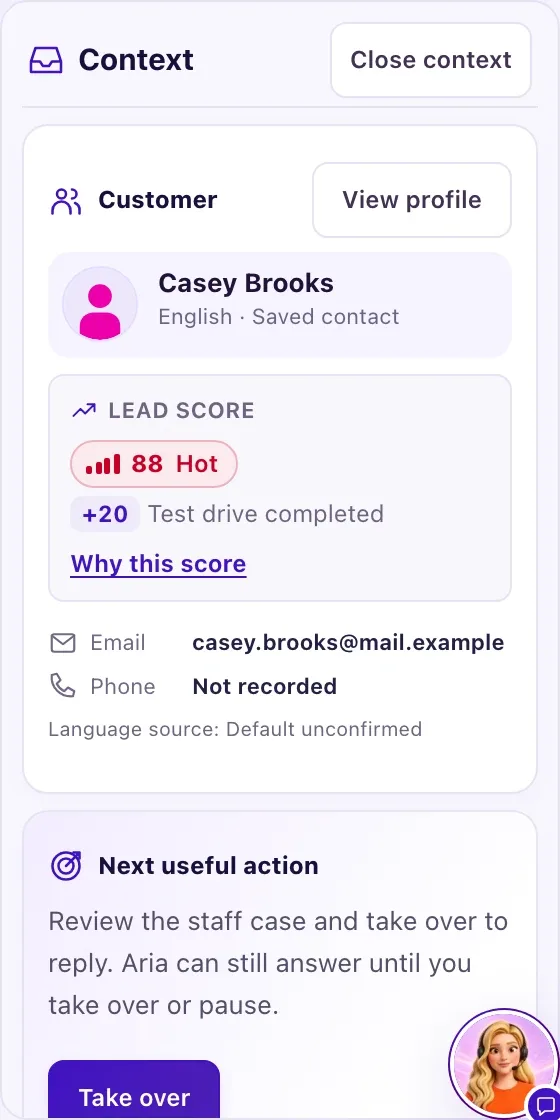
How to use it
- Open a conversation and select Context if the panel is hidden.
- Check Customer: the name, language, email, phone and address, and the conversation details (channel, language, which Aria version answers and the customer's identity on the channel; the same as the Instagram · English ⓘ button in the header). Select View profile to open their Contact.
- Read Aria memory for the facts Aria remembers about this customer.
- Read Customer needs for what the customer said they want, such as a vehicle, a budget or a time for a visit.
- Follow Next useful action. It suggests the next step for this conversation's state, with Take over or Hand back to Aria.
- Open Human attention when the customer is waiting for a person. See "A customer is waiting for staff".
- Open Related records to open the inquiries and opportunities linked to this conversation. An Owner can select Review a new opportunity to start one for this contact, filled in from what the customer said.
- Open Aria insights to see Aria's latest decision and how she reached it.
What the data means
| Part | What it shows |
|---|---|
| Intake review | For a conversation that came through Intake: its badge, the reason and the Disposition history of every change |
| Customer | "Saved contact", or "Provisional identity · no Contact yet" when QualiFlow doesn't know who this is. Lead score shows to Owners |
| Aria memory | Up to six facts Aria currently remembers, or "No active Aria memory facts." |
| Conversation purpose | A suggestion such as Sales inquiry or Service inquiry, from the customer's messages. It is not a qualification |
| Customer needs | What the customer said, with its source. "Conflicting statements — review history" when they said different things |
Nothing in Context is sent to the customer. What the customer said is shown in their own words and is not checked.
When no Contact email or phone is saved, the Customer card shows the address the email came from (or the number that texted), marked "(sender's address)". An email sender without a photo of their own shows their Gravatar picture when they have one, otherwise the usual default picture. Their address is never sent to Gravatar, only a one-way code made from it.
Possible issues and fixes
The Customer card says "Provisional identity · no Contact yet"
Symptom: View profile is disabled and the card says "Provisional identity · no Contact yet".
Why: The conversation isn't linked to a Contact yet. Aria can't book appointments for someone who isn't linked to a contact.
Fix: An Owner opens Intake, selects the conversation and uses Review & link or create Contact to link it to an existing Contact or create one.
How to check: The card says "Saved contact" and View profile opens the Contact.
I don't see the Lead score
Symptom: The Customer card has no Lead score.
Why: The lead score shows to Owners only. A new customer shows "Not enough information yet — a score appears after the first reply."
Fix: Nothing to fix. Ask an Owner if you need the score.
How to check: An Owner sees the score chip and Why this score.
Aria memory says "No active Aria memory facts."
Symptom: The Aria memory part is empty.
Why: Aria hasn't recorded anything about this customer yet. It is not an error.
Fix: Nothing to do. Facts appear as the customer tells Aria about themselves.
How to check: After a few messages about what the customer wants, facts appear here.
