
What it is
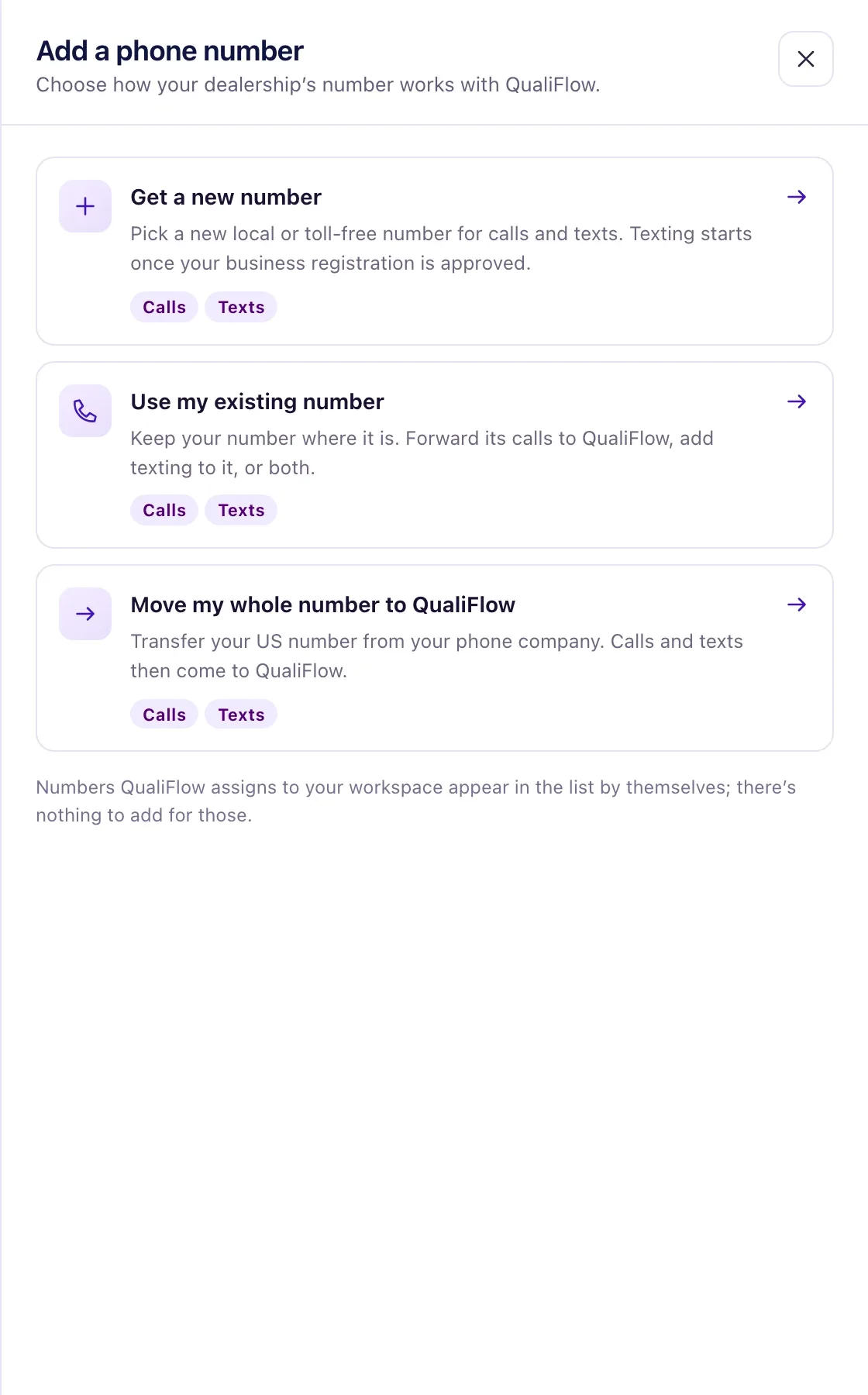
Add a phone number on Settings → Connections → SMS & calls → Phone numbers gives three choices:
| Choice | What happens |
|---|---|
| Get a new number | QualiFlow buys a new local or toll-free number for calls and texts. |
| Use my existing number | Your number stays with your phone company. Forward its calls to QualiFlow, add texting to it, or both. |
| Move my whole number to QualiFlow | Your US number moves from your phone company. Calls and texts then come to QualiFlow. Toll-free can't move. |
This article covers choosing, and adding texting to your existing number: "Texting moves to QualiFlow. Calls stay with your phone company." Texts to the number then arrive in QualiFlow and Aria answers them. For calls, see "Forward your calls to QualiFlow"; for a full move, see "Move your whole number to QualiFlow". Only the workspace Owner can set up any of them.
How to use it
- Open Settings → Connections → SMS & calls → Phone numbers and select Add a phone number.
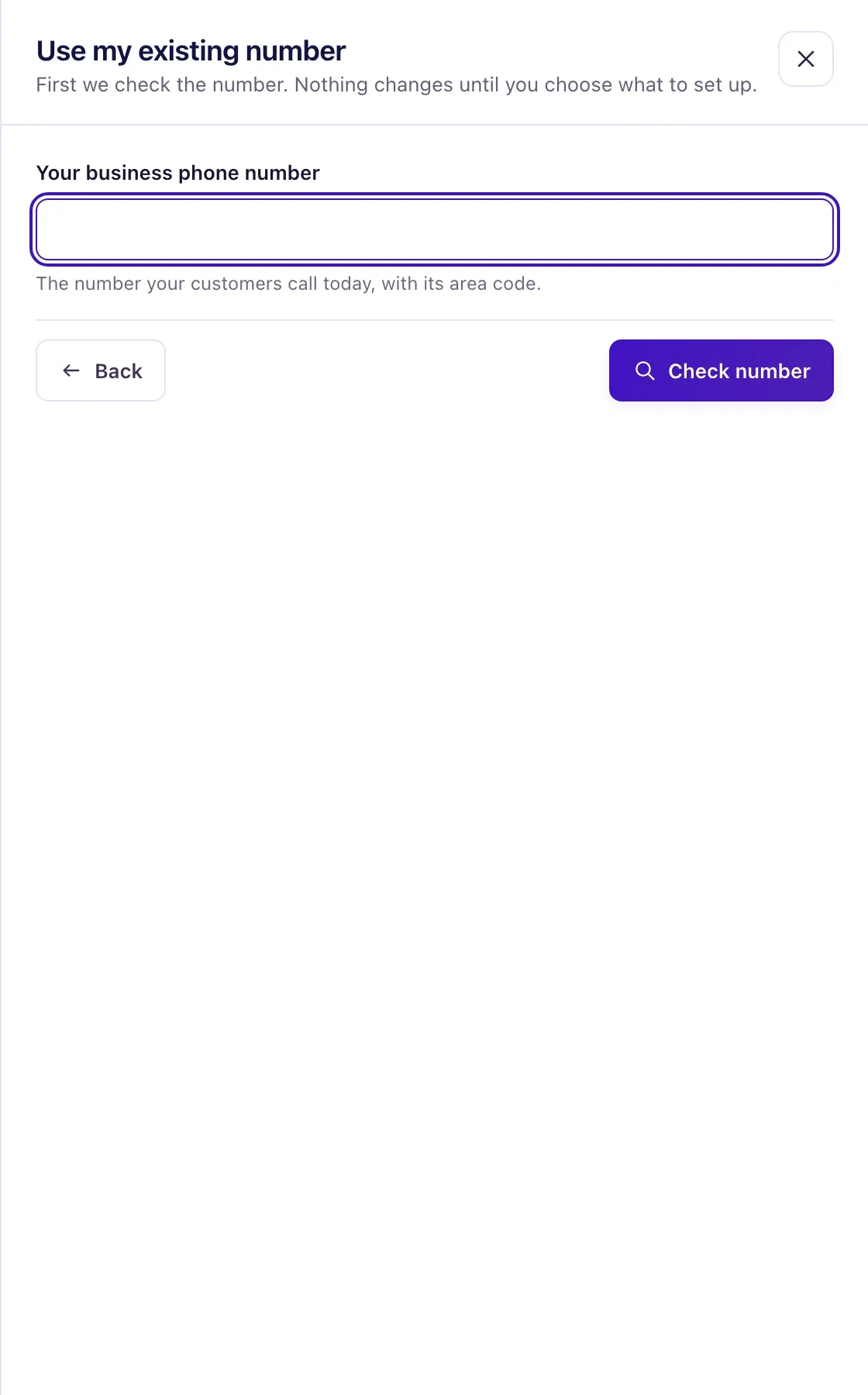
- Choose Use my existing number. Enter Your business phone number and select Check number. QualiFlow shows the line type.
- Under What should QualiFlow handle for this number?, choose Calls: forward to QualiFlow, Texts: add texting to this number, or both, and continue.
- For texting, under Business on the phone bill, enter the business name and address exactly as they are on your phone bill.
- Under Who can sign for this number, enter their Full name, Email and Phone. The permission form is emailed there.
- On Review and send, check the details and select Send to set up texting.
- The person who signs gets an email from our carrier partner with the permission form. They sign it, and the page moves on by itself.
- Next, under Verification call, select Call me now when you're next to that phone. Answer the call and type the code shown on the screen on the phone's keypad.
- If you missed the call, select Call me again. You have 3 calls.
- When the row on Phone numbers shows Texting on, texts to the number arrive in QualiFlow.
What the data means
The check shows the line type: Mobile number, Landline, Internet phone line or Toll-free number. Texting can be added to US and Canadian landline, internet phone line and toll-free numbers, not to mobile numbers. Forwarding works for any number that takes calls.
Each setup shows a row on Phone numbers with a badge: Not sent yet, Submitted, Waiting for your signature, Answer our verification call, Needs your attention, Texting on, Didn’t go through or Cancelled. Its button opens it: Continue, Verify by phone, View progress or View.
Texting progress runs: Details sent → Sign the permission form → Answer our verification call → Texting is switched on → done. Texting from a US local number to customers also needs your business registration approved.
Possible issues and fixes
"Your mobile carrier controls texts on this number"
Symptom: Texts: add texting to this number can't be chosen, with "Your mobile carrier controls texts on this number. Move the whole number instead."
Why: Texting can't be added to a mobile number while it stays with its carrier.
Fix: Select Move my whole number instead, or get a new number for texting.
How to check: The transfer or the new number shows on Phone numbers.
The row stays on "Waiting for your signature"
Symptom: The setup row shows Waiting for your signature for a long time.
Why: The permission form wasn't signed yet. The email can take a few minutes to arrive.
Fix: Ask the person you named under Who can sign for this number to check their inbox and spam folder for the email from our carrier partner, and sign it.
How to check: The badge changes to Answer our verification call.
All verification calls were used
Symptom: The page says "All verification calls were used."
Why: Each setup gets 3 verification calls, and none of them finished with the code typed in.
Fix: QualiFlow will contact you to finish it, or select contact support on the page.
How to check: The badge moves on to Texting on.
"QualiFlow is setting this up"
Symptom: A choice shows QualiFlow is setting this up. and can't be started.
Why: QualiFlow still has to switch this kind of setup on for your workspace.
Fix: There's nothing to enter. Select Contact support.
How to check: The choice can be selected and started.
