
What it is
This is the order most dealerships follow to get from a new account to real customers getting answers. Each step links to its own article.
Sign-up and setup connect nothing to customers. Aria starts answering only when a channel is connected and her live rules are approved, and texting, email and booking each have their own needs.
How to use it
- Sign up on the QualiFlow website and enter the 6-digit code from your email.
- Finish workspace setup: eight short steps, then Finish setup.
- Invite your team in Settings → Team & roles → Invite teammate. When each person has joined, choose what they can do and select Save access.
- Connect a channel in Settings → Connections: a texting number, Facebook, Instagram, WhatsApp, a mailbox or website chat.
- Approve Aria with Set up Aria now · 3 steps (or Set up Aria (3 steps) on the Overview's Aria card). In step 3 choose Autopilot or Ask first, then I approve · turn Aria on.
- Check booking: booking uses your opening hours. In Settings → Booking, check Visits at the same time, Close on public holidays and Other days you close.
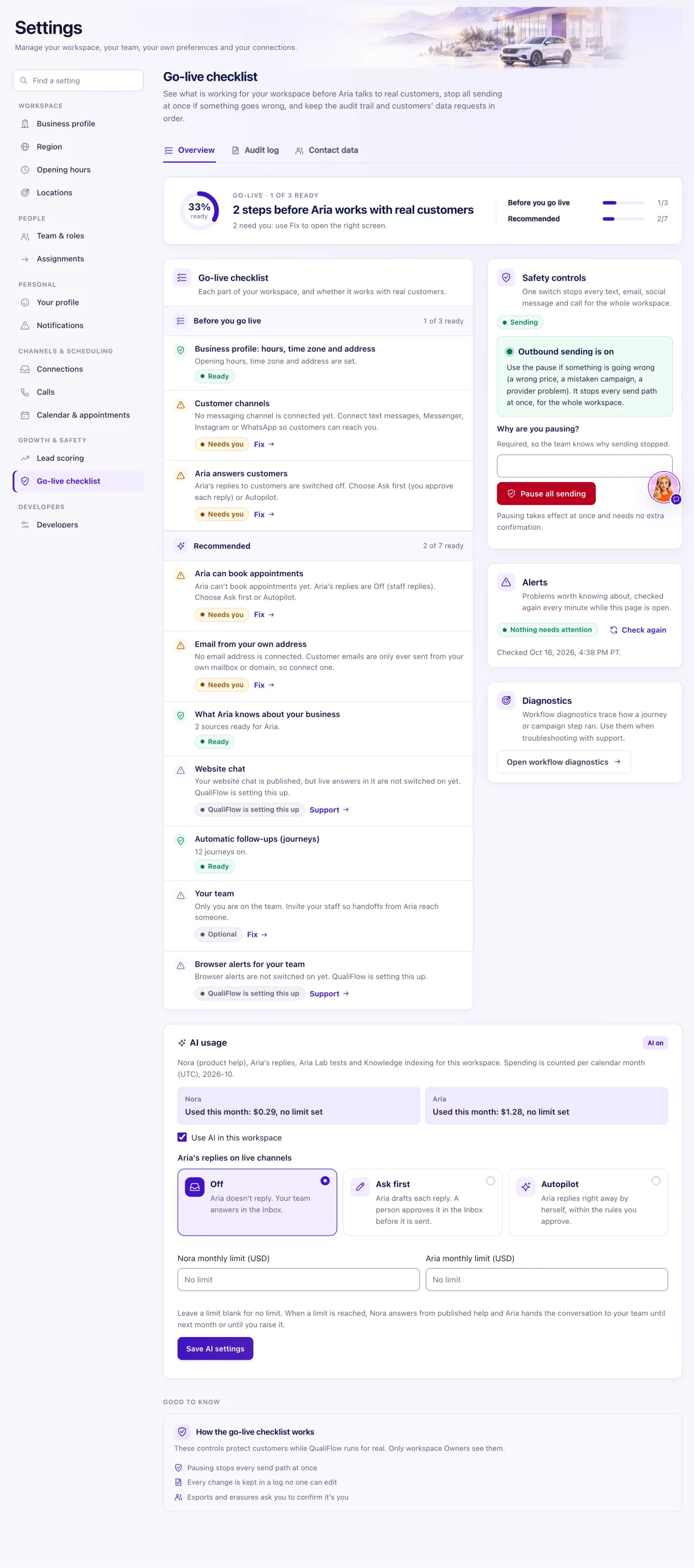
- Clear the checklist: open Settings → Go-live checklist and select Fix on every row marked Needs you.
- Test it: from a phone that isn't the dealership's, message your number, Page or mailbox. It should show in the Inbox and Aria should answer.
Return to Overview
While signed in, opening the QualiFlow root address takes you to Overview, where you can see dealership activity and next steps. Visitors who are signed out see the public website. This page was called Home for a short time; saved dashboard links still work.
What the data means
Settings → Go-live checklist is your live to-do list. Ready for customer replies means the required steps pass. It doesn't send a test, and it doesn't check texting registration or whether a time is free, so always finish with a real test message.
To log in on a new computer, enter your email and password, then the NEW DEVICE code from your email. That browser is remembered for 30 days.
Possible issues and fixes
I finished setup, but customers aren't getting replies
Symptom: Setup is done, yet nobody gets an answer.
Why: No channel is connected yet, or Aria's live rules aren't approved.
Fix: Open Settings → Go-live checklist and select Fix on each row marked Needs you. Then send a test message from a phone.
How to check: The test message shows in the Inbox and Aria answers it.
Aria says she can't book
Symptom: A customer asks for a visit and Aria passes it to your team.
Why: There are no booking resources, or Aria's approved rules don't allow booking.
Fix: On Settings → Go-live checklist, use Create default resources or Turn on Book appointments on the Aria can book appointments row, and confirm.
How to check: The row reads Ready, and a test customer who asks for a visit is offered a time.
My texts show "Not sent"
Symptom: Replies by text don't go out.
Why: US carriers must approve your business registration before any text goes out. Calls and incoming texts can work before that.
Fix: Complete Settings → Connections → SMS & calls → Business registration and wait for approval.
How to check: Every registration row reads Approved, and a test reply shows Delivered.
