
What it is
Use this article when Aria answers no customer at all, or when nothing goes out on any channel. The cause is then a workspace setting, not one conversation. If only one conversation went unanswered, see "Why didn't Aria reply?".
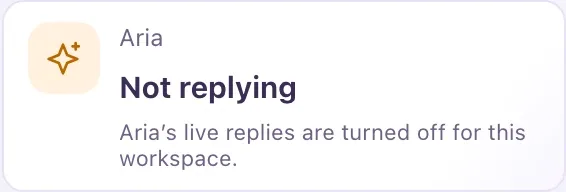
QualiFlow always shows the reason on screen. The Aria tile at the top of the Inbox says Ready when Aria can reply, or Not replying with the first reason. Read it before you change anything.
Most fixes are Owner settings. A Staff member can read the reason and ask their Owner.
How to use it
- Open Inbox and look at the Aria tile.
- If it says Not replying, read the reason under it, then select the tile. It opens the screen that fixes that reason.
- Fix it, go back to the Inbox and check the tile again. It shows the next reason if there is one. The tile refreshes about every 15 seconds.
- An Owner opens Settings → Go-live checklist and works through every row marked Needs you.
- If one conversation is the problem, look at its badge (Taken over, Paused or Closed) and at the Aria didn't reply card in the thread.
- Remember that some things wait on purpose: replies waiting for approval on Ask first, steps waiting for allowed hours, texts waiting for carrier approval, and email campaigns waiting for an Owner to bind a delivery policy.
- When the tile says Ready ("AI replies available"), send a test message to a connected channel from your own phone. Aria answers it.
What the data means
| What the tile or card says | What an Owner does |
|---|---|
| Aria's live replies are turned off for this workspace | Set the Aria: switch to Ask first or Autopilot |
| AI is turned off for this workspace | Turn on Use AI in this workspace in Settings → Go-live checklist |
| This month's AI limit was reached | Change the limit in Settings → Go-live checklist |
| No approved reply policy covers this location | Approve Aria's rules in Aria setup, step 3 |
| No published agent answers on this channel | Publish the agent in Aria Lab |
| All sending is paused for this workspace | Resume sending in Settings → Go-live checklist → Safety controls |
A workspace-wide stop does not mark every conversation Awaiting staff. Each conversation gets a note saying why, and Owners get one alert per cause per day.
Possible issues and fixes
The tile says "Aria's live replies are turned off for this workspace"
Symptom: The Aria tile says Not replying with this reason, and no customer gets an answer.
Why: The Aria: switch is set to Off, so only your team replies.
Fix: An Owner sets the Aria: switch next to the Inbox tabs to Ask first (Aria drafts, a person approves) or Autopilot (Aria replies by herself). The same switch is on the Aria card on the Overview and in the Go-live checklist.
How to check: The tile shows Ready within about 15 seconds.
The Overview says "Aria isn't published yet, so she isn't replying"
Symptom: The Aria card on the Overview says Aria: Not answering customers yet, with this line or "Aria's own setting is still Off (staff replies)".
Why: Aria has no published version, or her setup isn't finished, or her own agent setting doesn't match the switch.
Fix: Select Set up Aria (3 steps) and finish it, or open Aria Lab, select Configure Aria and Publish version. If her own setting is still Off, save the switch choice again.
How to check: The Aria card says Aria: Live on your channels.
One channel never gets a reply
Symptom: Aria answers on some channels, but never on one of them.
Why: No agent is assigned to that channel, or its agent is paused or archived. A paused extra agent's channel waits for your team; Aria does not cover for it.
Fix: Open Aria Lab, open the agent and check Channels & routing. Assign an agent to the channel, or resume the paused agent.
How to check: A test message on that channel gets an answer.
Aria authority shows "No approved policy" or "live paused"
Symptom: In Aria Lab, Aria authority · Selected location shows No approved policy, Draft · live paused, Approval lapsed · live paused or Location needed.
Why: No active Owner has approved Aria's live rules for this location, so she may not answer customers there.
Fix: An Owner approves a revision of the rules for the location in Aria Lab, or finishes Aria setup, step 3.
How to check: The badge no longer says paused, and the Inbox tile shows Ready.
Nothing goes out on any channel
Symptom: No text, email, social message or call leaves QualiFlow, from Aria or from your team.
Why: An Owner turned on Pause all sending. Messages wait in the queue; time-limited reminders that pass their window are not sent late.
Fix: An Owner opens Settings → Go-live checklist → Safety controls and selects Resume sending. You may be asked to confirm it's you.
How to check: Safety controls says "Outbound sending is on".
The card says the Meta account or mailbox needs reconnecting
Symptom: Replies fail on Facebook, Instagram, WhatsApp or email, and the card says the connection needs to be reconnected, or "Customers only get email from your dealership's own address".
Why: The sign-in for that channel expired or was removed, or no dealership mailbox or verified email domain is connected.
Fix: An Owner opens Settings → Connections and selects Reconnect on the channel, or connects Gmail, Outlook or your own email domain.
How to check: The channel shows Connected, and the next customer message gets an answer.
