
What it is
Most problems can be fixed by an Owner on screen. The ones below sit on QualiFlow's side: how phone numbers are routed, numbers QualiFlow assigns, QualiFlow's own Google and Microsoft app setup, live launch approvals, and anything marked QualiFlow is setting this up. For those, do the check first, then create a ticket.
Any team member can raise a ticket. Only an Owner can change connections.
How to use it
- Do the "check first" step for your problem below.
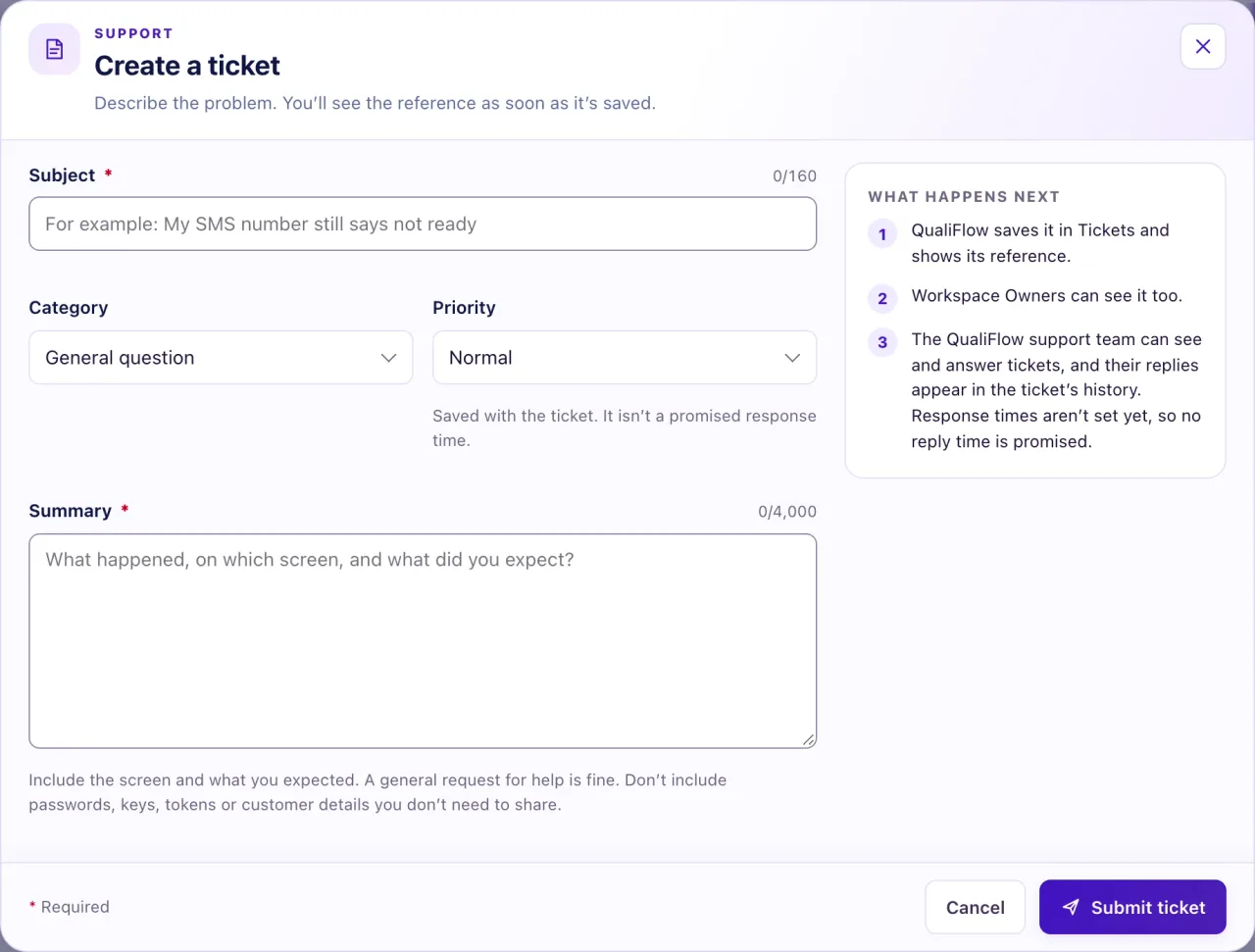
- Open Support and select Create a ticket, or ask Nora and choose Talk to a person; she prepares a summary for you to check and submit.
- Write a Subject of 3 to 160 characters: the area and the symptom, for example "Texts to our main number don't reach the Inbox".
- Choose the closest Category, such as "Connections and channels", "Calls and voice" or "Something else".
- Choose a Priority: Normal, High or Urgent. It is saved with the ticket; it is not a promised reply time.
- Write the summary (see below) and submit.
- Follow the ticket on the Support page or in Nora's My tickets. Updates appear only inside QualiFlow, not by email.
- When it says Waiting on you, reply with Add reply. Only the person who created the ticket can reply.
- A Resolved or Closed ticket can't take replies: select Create a follow-up ticket. You can have up to 25 tickets open at a time.
What the data means
What to put in the summary: what you expected and what happened; where (the location, channel, and the exact number, Page, mailbox, campaign or conversation); the exact words on screen, copied out, because you can't attach screenshots; when it happened and whether it ever worked; what you already tried; and who is affected, with one example by contact or conversation name. Don't paste private customer details, and never put a password, key or token in a ticket.
Not a reason for a ticket: Aria can't book (your resources and rules), texts say Not sent while carrier approval is pending (it can take up to 3 weeks), Aria is silent (her switch, rules or AI limit), an email campaign sits on Held (an Owner binds the delivery policy), or a Messenger or Instagram reply is refused after 24 hours (the customer must write again).
Possible issues and fixes
Texts or calls don't reach QualiFlow although the number is Verified
Symptom: Customers say they texted or called, but nothing reaches the Inbox or Calls → Incoming, although the number shows Verified. Or What voice calling needs shows Missing for a check.
Why: How a number is routed to QualiFlow is set at QualiFlow's phone provider, which Owners can't open.
Fix: First check Settings → Connections → SMS & calls → Phone numbers: the number is Verified, its Location is the Inbox you watch, and its capabilities include SMS or Voice. For an existing number, the forwarding test shows Forwarding works. Text or call once from another phone and wait a minute. Then create a ticket.
How to check: A test text or call shows in QualiFlow.
A number QualiFlow assigns hasn't arrived
Symptom: A promised number isn't under Phone numbers, or the screen says it "hasn't been allocated to your workspace yet".
Why: QualiFlow assigns and allocates these numbers.
Fix: Assigned numbers appear by themselves as Verified, at the main location unless QualiFlow chose another, and Owners get a bell alert. You can change the Location with Edit. If it hasn't arrived, create a ticket.
How to check: The number shows Verified under Phone numbers.
Gmail, Outlook or a calendar won't connect
Symptom: Connecting stays on Authorization pending after you allowed access, or the tile says it isn't available, while signing in to QualiFlow with Google works.
Why: QualiFlow's own Google and Microsoft apps must be set up for mail and calendars. It is the same for every dealership.
Fix: Check you finished sign-in, used Find my mailboxes (or chose a calendar) and picked one, kept every permission, and tried Reconnect once. Then create a ticket.
How to check: The tile shows Connected.
An Aria Campaign can't start
Symptom: Start is blocked: "Live campaign launch rules are not approved for this workspace yet; live campaigns cannot start."
Why: QualiFlow approves live launch for each workspace and gives you a launch approval reference.
Fix: Fix any Blockers on the Review step that have a fix button, then create a ticket. An email campaign on Held is different: an Owner binds the delivery policy.
How to check: Blockers is empty and Start is available.
A step says "QualiFlow is setting this up"
Symptom: A Go-live checklist row shows QualiFlow is setting this up, What happens next says QualiFlow must switch live processing on, or Settings → Notifications says "Background push needs a one-time setup by QualiFlow support."
Why: QualiFlow turns these on for your workspace or server.
Fix: Finish every step marked Needs you first, then create a ticket or select Contact support.
How to check: The row shows Ready.
"This account is already connected to another QualiFlow workspace"
Symptom: Connecting a Page, account or number says "This account is already connected to another QualiFlow workspace. Disconnect it there first, or contact QualiFlow support."
Why: One Page, account or number can be connected to only one workspace.
Fix: If you own the other workspace, disconnect it there. If you can't, create a ticket.
How to check: Connecting works and the tile shows Connected.
