
What it is
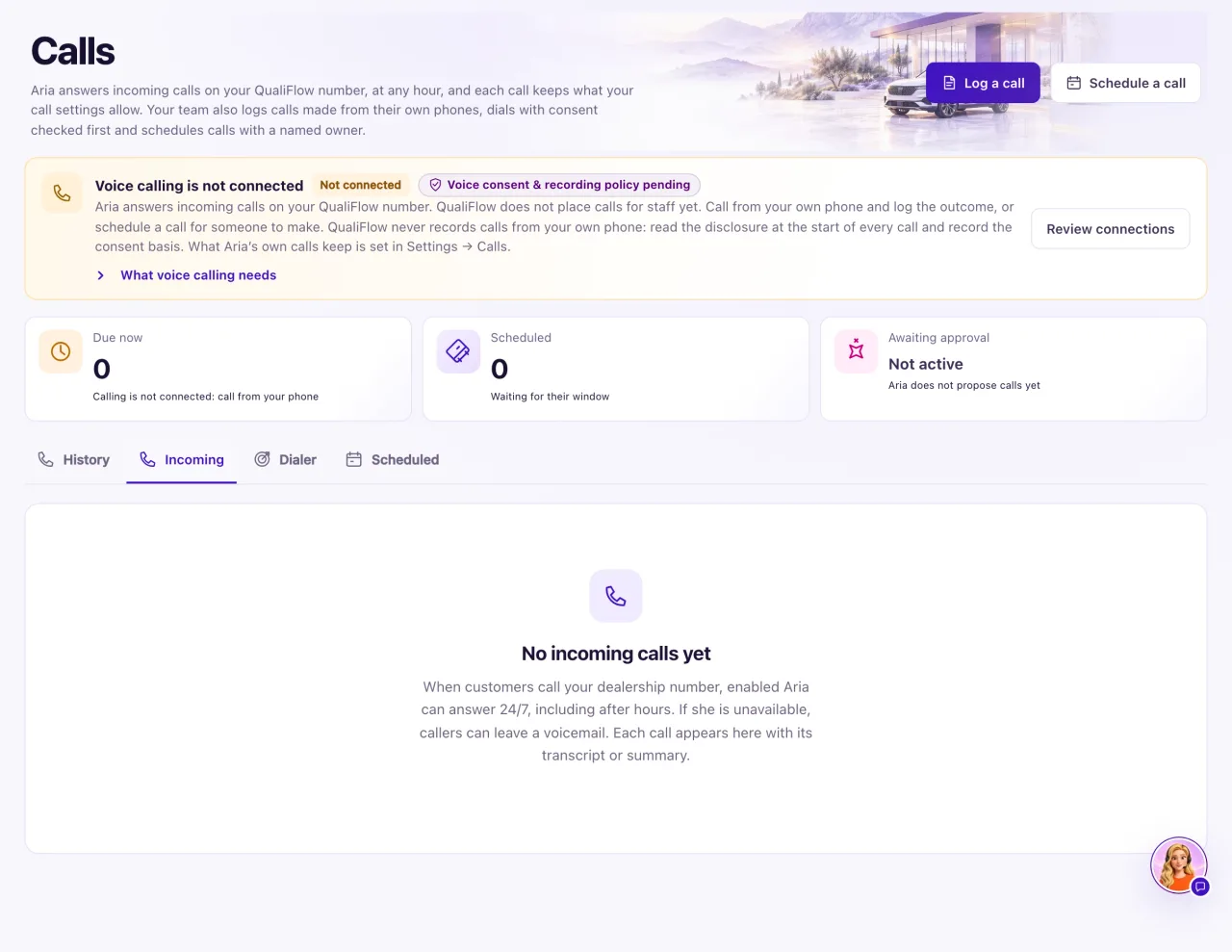
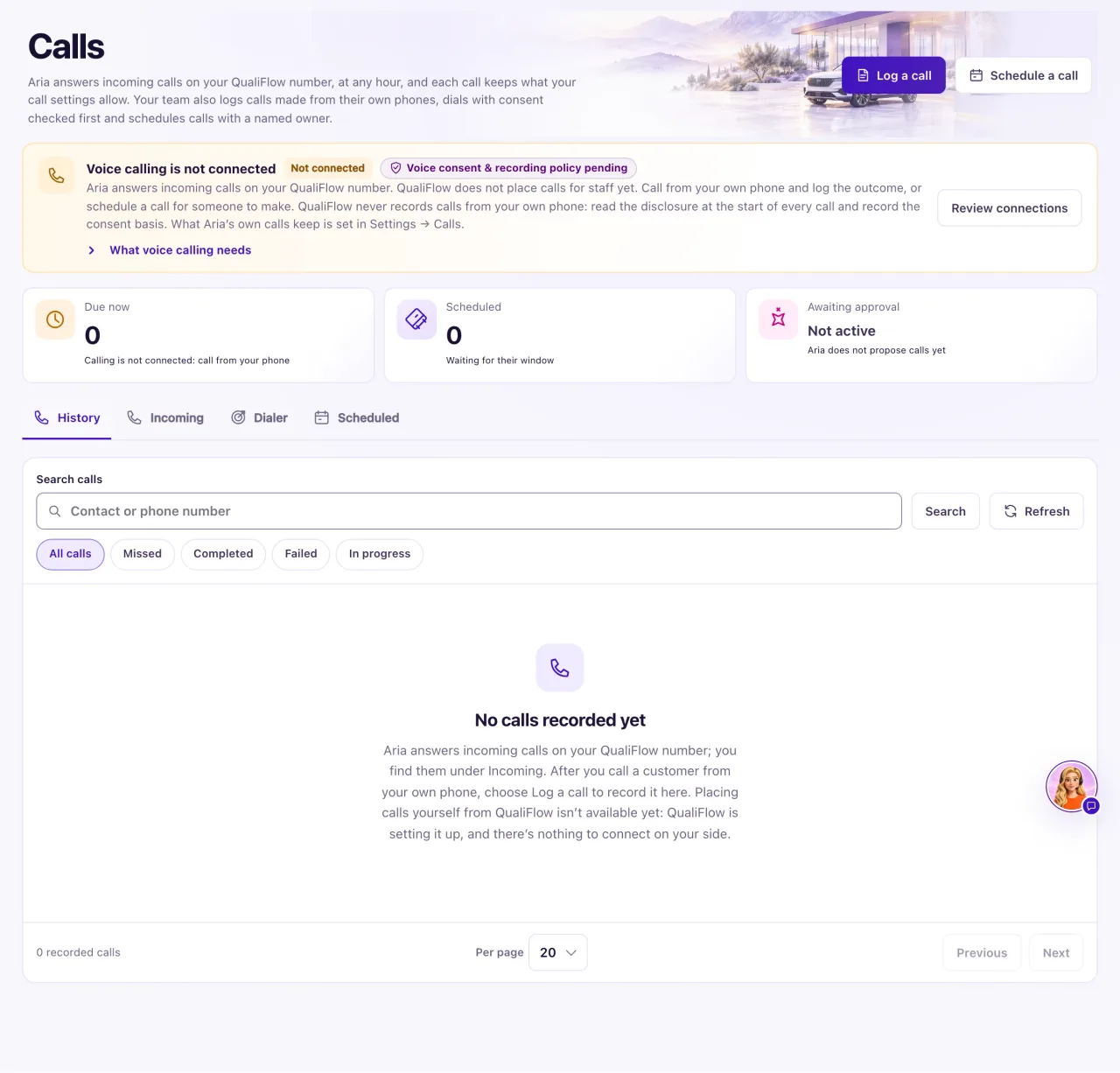
Calls (in the sidebar, between Inbox and Inventory) has four tabs:
- History: Aria Campaign calls and calls your team logged.
- Incoming: calls to your dealership number that Aria answered, transferred, sent to voicemail or missed.
- Dialer (Owners): prepares and records a call you make from your own phone.
- Scheduled: calls planned for someone to make.
Aria answers incoming calls on your QualiFlow number at any hour. QualiFlow does not place outgoing calls from the browser: your team calls from their own phones and logs the result.
How to use it
- Open Calls in the sidebar.
- Select Incoming to see calls to your dealership number. Each row shows the caller, the time, the length, the location and the outcome. Calls Aria answered show her summary.
- Select Show transcript and recording (or Show transcript, Show recording or Show what this call kept) to open what the call kept. Select Open in Inbox to carry on with the customer.
- Select History for campaign calls and calls your team logged. Use Search calls and the chips All calls, Missed, Completed, Failed and In progress.
- Select a call in History to see its details: Call facts, the outcome your team logged, Open contact and Open conversation.
- After calling a customer from your own phone, select Log a call. See "Log and schedule calls".
- Select Scheduled to see planned calls. Select a count card (Due now, Scheduled, Awaiting approval) to filter them.
What the data means
| Incoming badge | What it means |
|---|---|
| Answered by Aria | Aria took the call |
| Answered by Aria (transfer not answered) | Aria tried to put the caller through, but nobody at the store answered |
| Transferred to the store | Aria passed the caller to your store's line |
| Voicemail | The caller left a voicemail |
| Missed | Nobody answered and no voicemail was left |
| Could not be answered | A technical problem stopped the call before anyone answered |
The box above the tabs reads Voice calling is not connected while outgoing calling is off, even when Aria answers incoming calls well. Open What voice calling needs and read the items: the verified voice number routed to your workspace and the voice number allocated by QualiFlow decide whether incoming calls reach you.
When a caller says their name, Aria reads it back ("Got it, is that Daniel?") and saves it once they agree. The name shows on the call's Inbox item, even when call summaries and transcripts are off. It replaces a placeholder name such as Test, Unknown, a phone number or a blank name. A different real name already on the contact is kept, and the new one goes to My Work for your team to check.
Incoming lists the latest 50 calls. Everyone sees only calls for the locations they work in. Staff with Calls access see the page read-only, without Log a call, Schedule a call or the Dialer.
Possible issues and fixes
A customer called, but the call isn't in History
Symptom: You look under History and the call isn't there.
Why: Calls to your dealership number are on Incoming, not History. Calls Aria makes from a note on a contact show on that contact's Aria note.
Fix: Select Incoming. For an older call, open the customer's conversation in the Inbox and select Open the call in Calls on its call card.
How to check: The call shows on Incoming with its outcome badge.
Missed calls don't show in the Inbox
Symptom: A call shows Missed under Incoming, but there is nothing in the Inbox.
Why: Missed calls, and voicemails from hidden numbers, don't create an Inbox item, and a missed call starts no follow-up by itself.
Fix: Call the customer back from your own phone and select Log a call.
How to check: The logged call shows in History marked Logged by staff.
I can't see the Dialer tab or Log a call
Symptom: The Dialer tab and the Log a call and Schedule a call buttons are missing, and the page says "View only. Ask your Owner for access."
Why: Staff access to Calls is view only. Logging, scheduling and the Dialer are for Owners.
Fix: Ask an Owner to log or schedule the call.
How to check: The Owner's logged call shows in History.
